
Documentation
Getting started
This guide takes you from sign-up to a workspace your team can use. You sign up and pay in five short steps; Worklynq builds a private workspace for your company; then a six-step setup fits it to your business — the right modules, the way you organize work, and ticket types for your industry.
- Sign up and open your workspace
- Your company and industry
- Pick your modules
- Add where your work happens
- Choose your ticket types
- Connect your tools
- Invite your team
1Sign up and open your workspace
Sign up at login.worklynq.net/signup. It takes five steps, shown at the top of each page:
- Your email. Enter your work email and click Send code.
- The code. Type or paste the 6-digit code we email you. It lasts 10 minutes; you can ask for a new one.
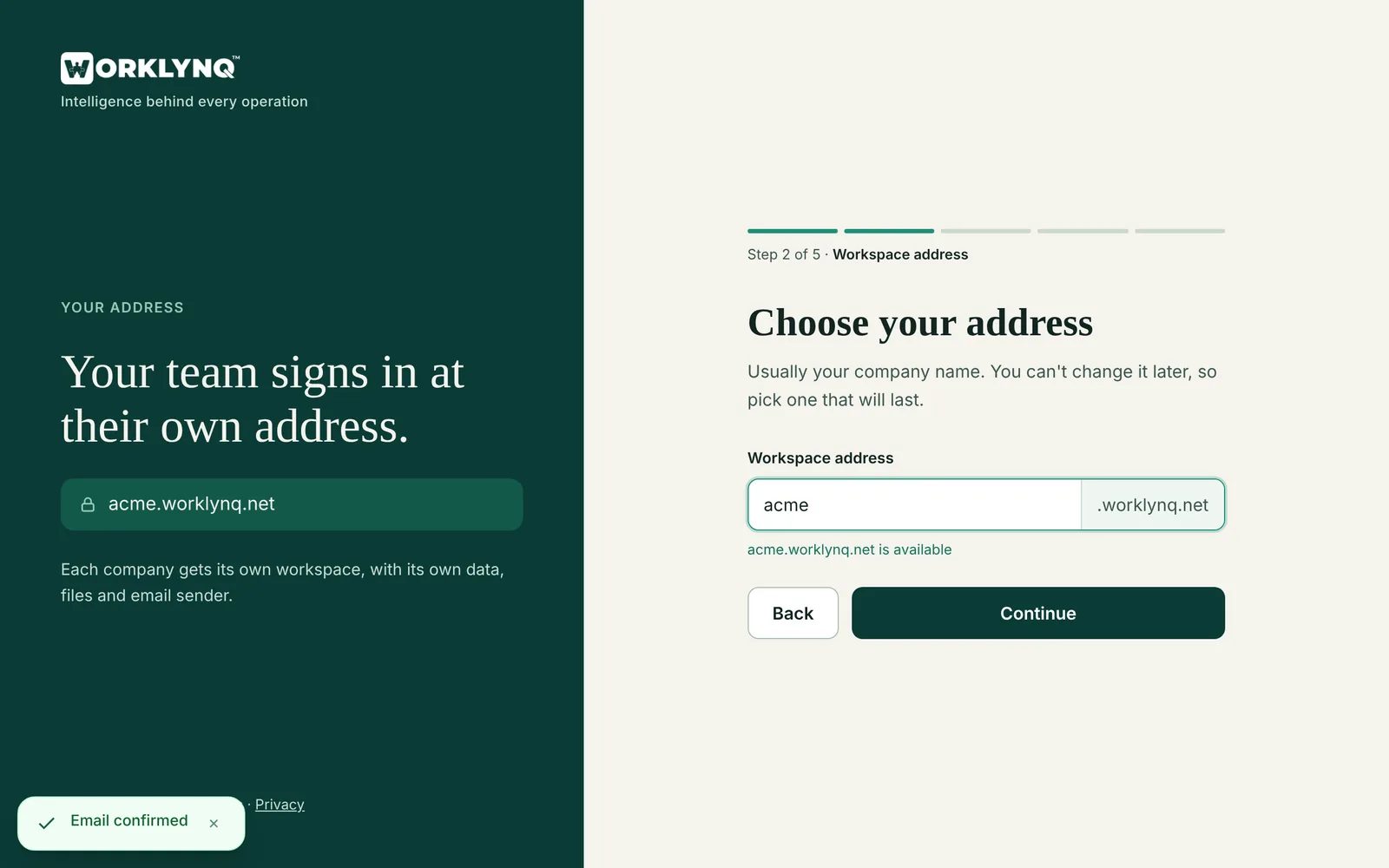
- Workspace address. Choose your address, for example
acme.worklynq.net— the page checks it’s free as you type. It can’t be changed later. - Company and you. Your company name, kind of company and industry, team size, your name and phone, and a password.
- Plan. Choose Basic, Advance, or Premium, monthly or yearly, and how many people, then pay on Stripe’s secure checkout page. See Plans & billing.
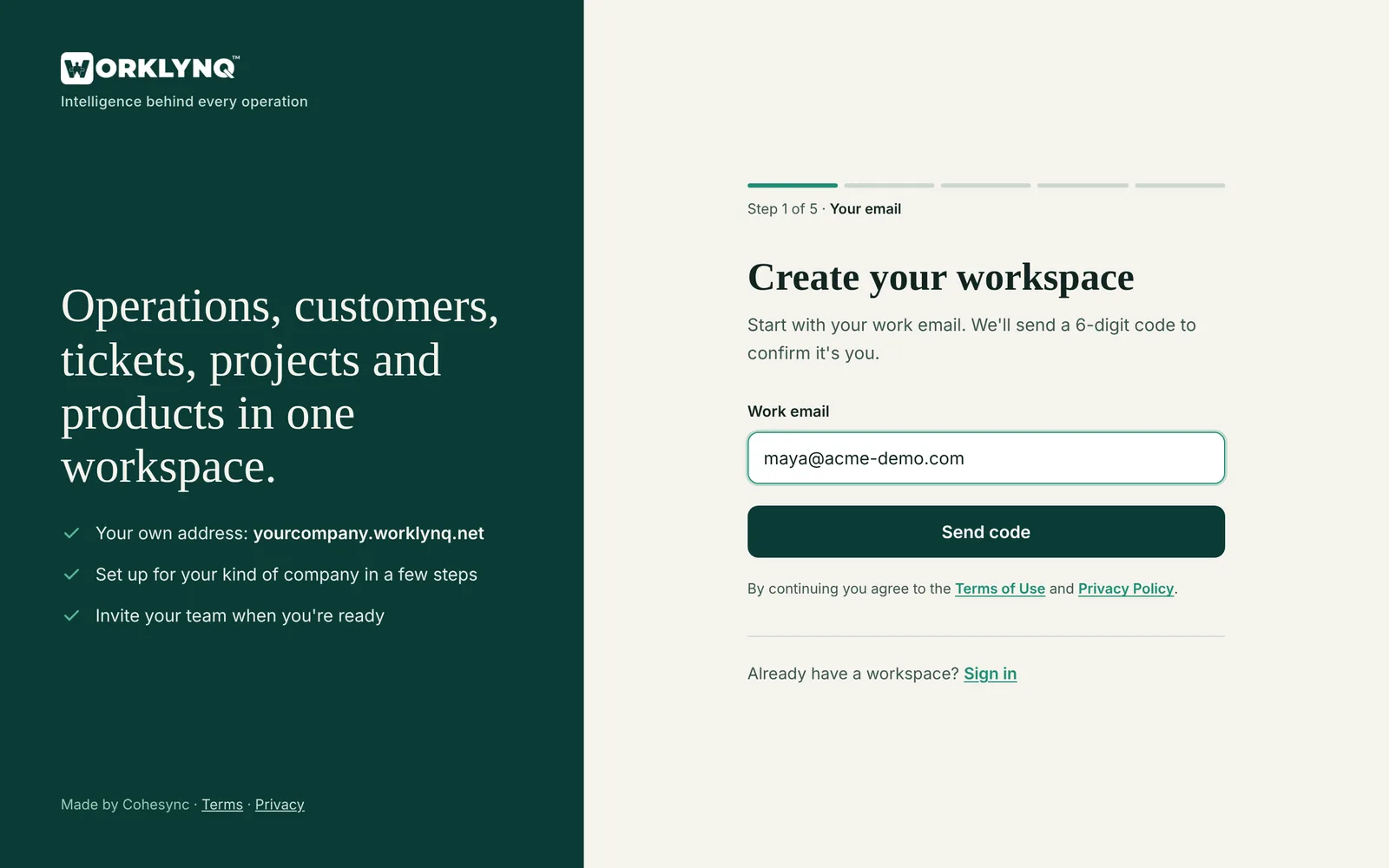
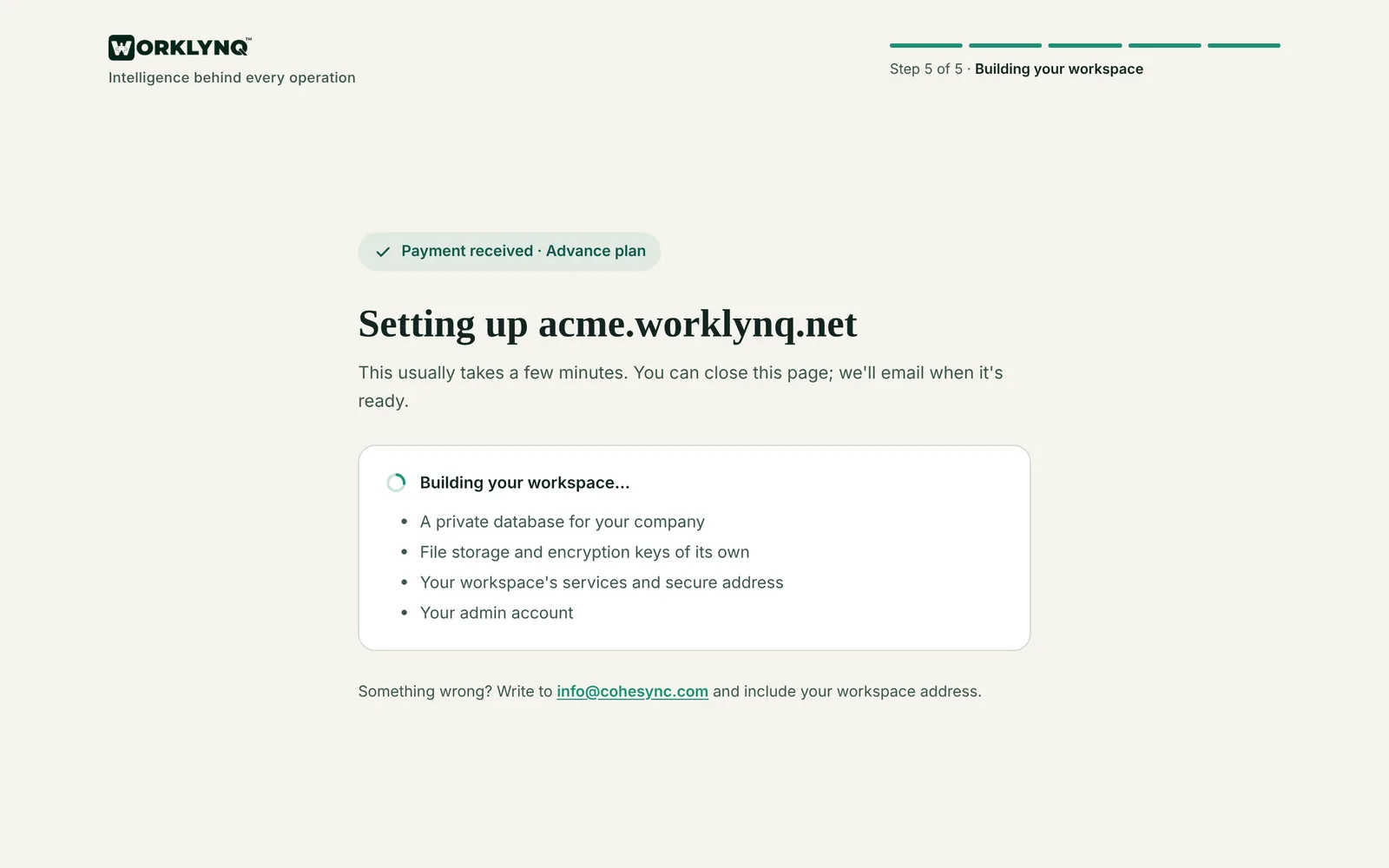
Once Stripe confirms your payment, Worklynq builds your workspace: a private database, its own file storage and encryption keys, its services and secure address, and your admin account. This usually takes a few minutes. You can close the page — we email you when it’s ready, and the page takes you there if it’s still open.
Choose a short address your team will recognize. Everyone signs in at login.worklynq.net and lands in your workspace — see Signing in.
2Your company and industry
The first time you sign in, setup opens on Your company, with the kind of company and industry you chose at sign-up filled in. Confirm them or change them. This decides how Worklynq organizes your work, which modules it turns on, and which ticket types it suggests.
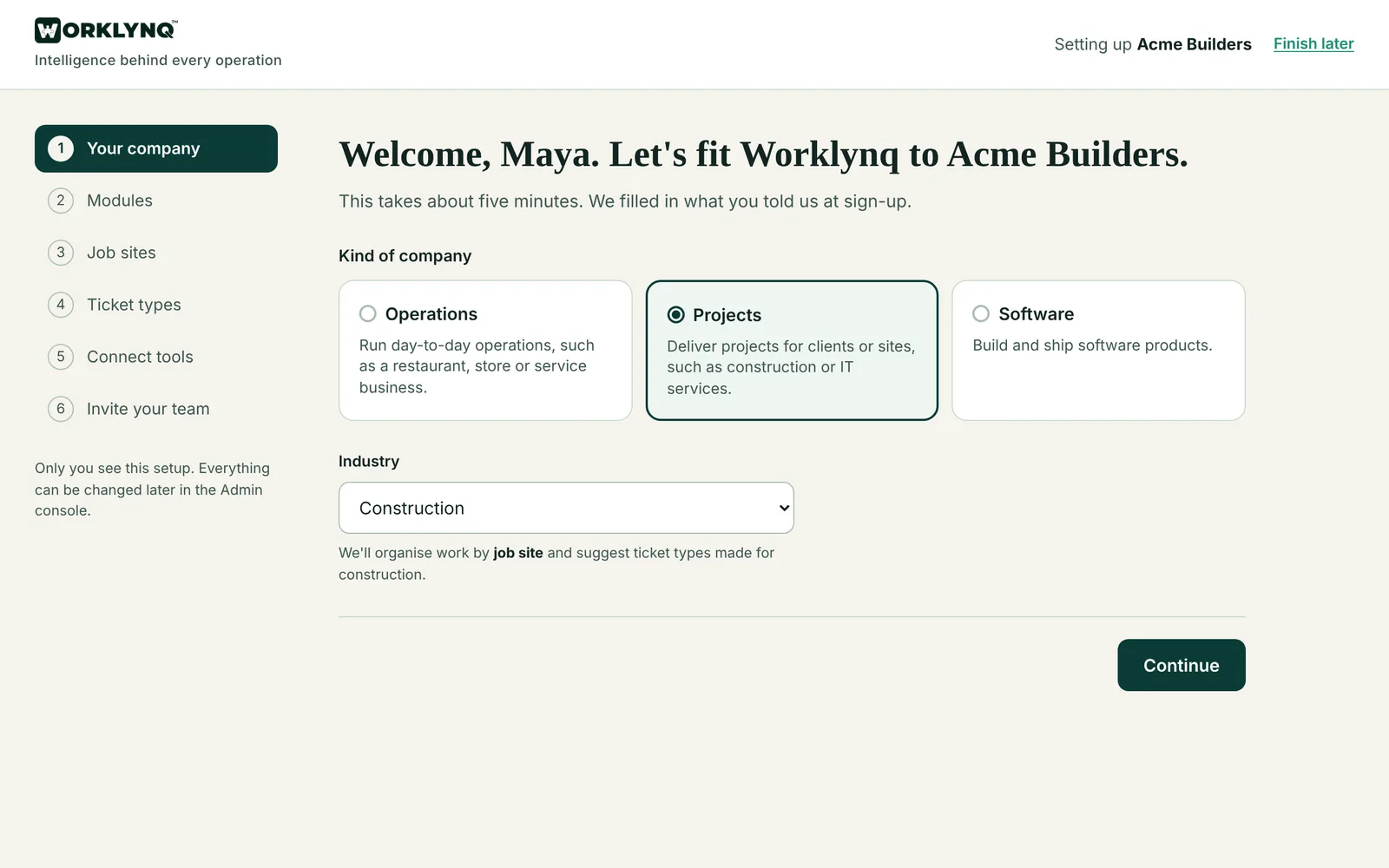
| Kind of company | Pick this if… | Industries |
|---|---|---|
| Operations | Your work is ongoing and happens at a place — it never “finishes” | Restaurant or café, hotel and hospitality, retail store, facilities |
| Projects | Your work comes in jobs with a start, an end, and often a client | Construction, IT services, agency, consulting |
| Software | You build and release a product over time | Software and tech |
Changing the kind of company switches on that kind’s starting modules, which you can adjust in the next step.
3Pick your modules
Next you’ll see every module, grouped by area, with the ones that suit your business already ticked and a one-line description of each. Untick what you don’t need and tick anything you’d like to add.
- Some modules need another one. Operations, Projects, Team Board, Roadmaps, Product Releases, and AI Agents need Tickets; Knowledge Library needs Spaces; Order Tracking and Engagement need Customers. Turning one on turns on what it needs. See What each module needs.
- Approvals is optional. The Approvals module is never ticked for you — turn it on if your team needs sign-off on documents, purchases, access, or time off. It doesn’t need any other module.
- Nothing is permanent. Your System Admin can change modules anytime in Admin console → Work Configuration → Modules, and drag them into the order your sidebar shows them. Turning one off hides it — your data stays.
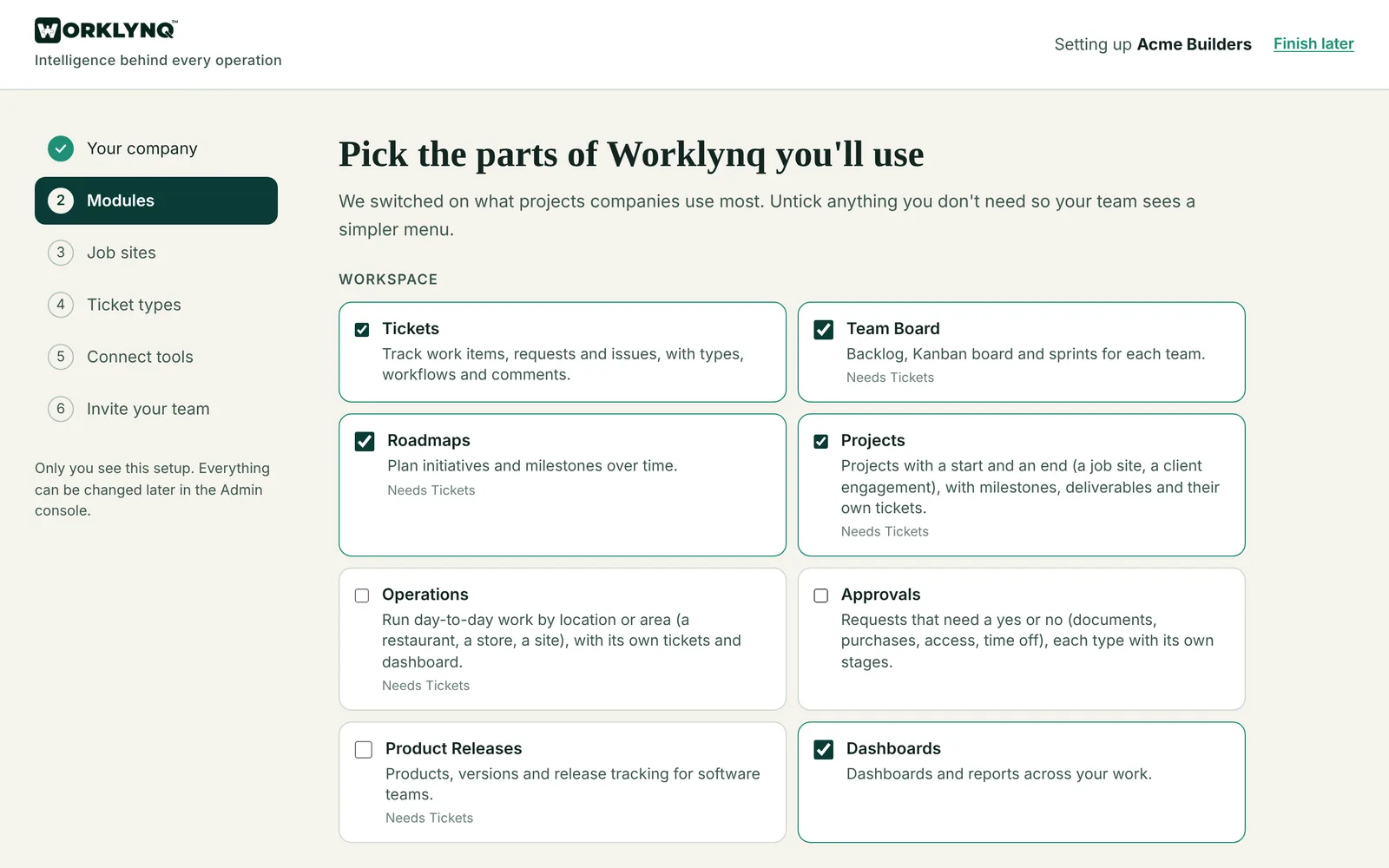
Home is on for everyone and first in the sidebar — it’s where each person starts. See Home.
Not sure what a module does? See Modules.
4Add where your work happens
Every ticket in Worklynq belongs to a place where the work happens. Depending on your business type, that’s one of three kinds:
Your stores
Operations businesses
Something that runs every day and never finishes — a store, a restaurant, a kitchen, a site. Each gets its own daily schedule, recurring checklists, and dashboard.
e.g. “Downtown café”, “Main St. store”
Projects
Projects businesses
Work with a start, an end, and a goal — a job site or a client engagement, with milestones and a team board.
e.g. “Oak Ave. renovation”, “Acme website”
Products
Software businesses
Something you build and release over time, with a roadmap, releases, and AI coding agents.
e.g. “Mobile app”, “Customer portal”
Add your first one now — setup uses your industry’s word, like “Add your first job site” or “Add your first location”, with a name and an optional note. You can skip this step and add them anytime.
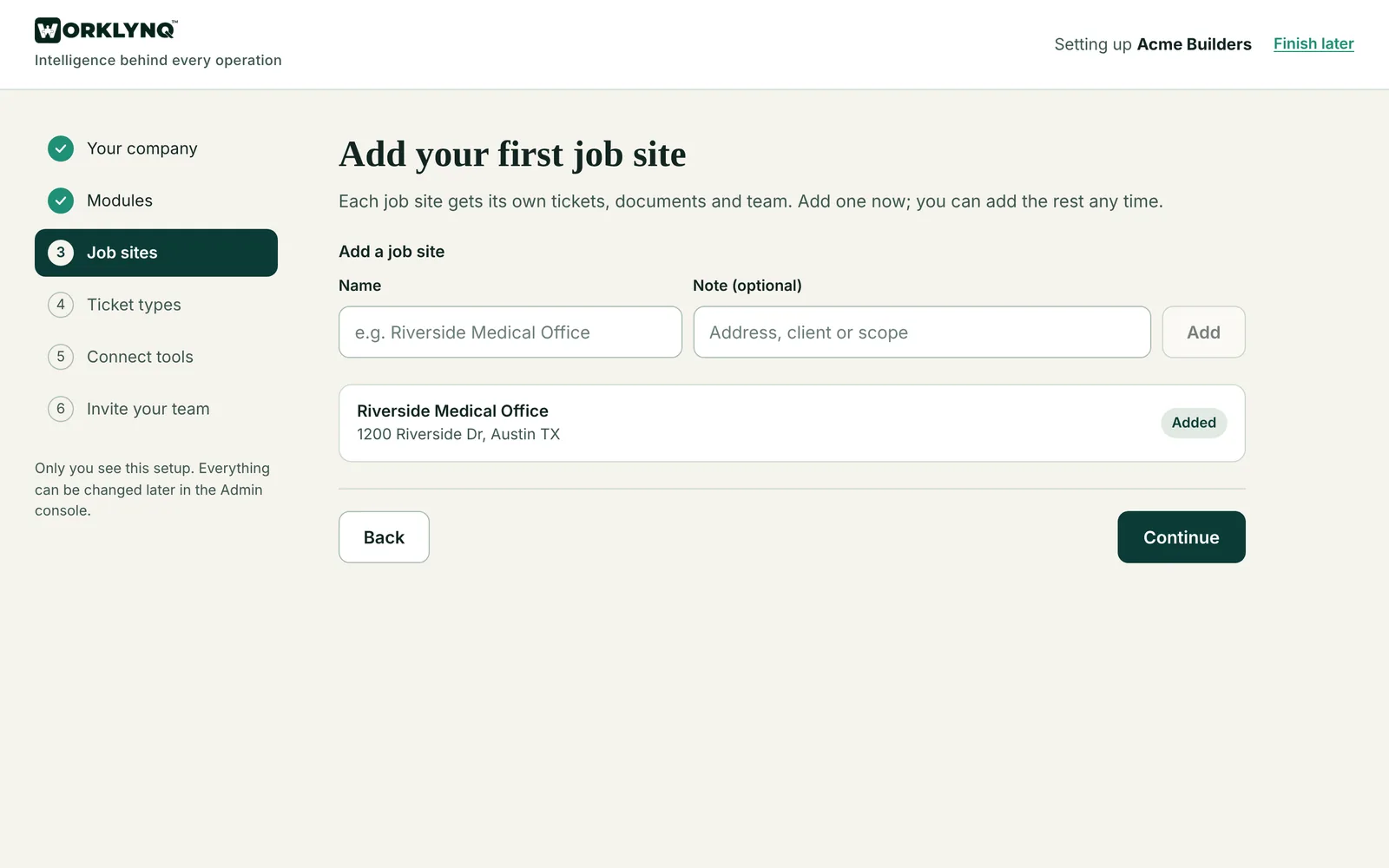
A business can use more than one kind. A restaurant group might run its stores as Operations and track a new opening as a Project.
5Choose your ticket types
Ticket types are the kinds of work your team tracks — a Checklist, a Maintenance Request, an RFI, a Bug. Each one comes with its own stages (for example Open → In progress → Done) and colors — and can end more than one way, like Approved or Rejected. Some sit under others, like a Story under an Epic.
Pick from the library. Worklynq has a library of 35 ready-made ticket types. Setup lists the types made for your industry, with the recommended ones ticked and each type’s stages shown from start to finish. Untick what you won’t use; types you already have are shown as already in your workspace.
| Industry | Recommended ticket types |
|---|---|
| Restaurant | Task, Checklist, Maintenance Request, Supplier Order, Food Safety Issue, Guest Feedback, Staffing Request |
| Construction | Task, Sub-task, Milestone, RFI, Submittal, Change Order, Punch Item, Inspection, Safety Incident, Daily Log |
| Software | Epic, Story (under Epic), Task, Sub-task, Bug, Spike, Incident, Feature Request |
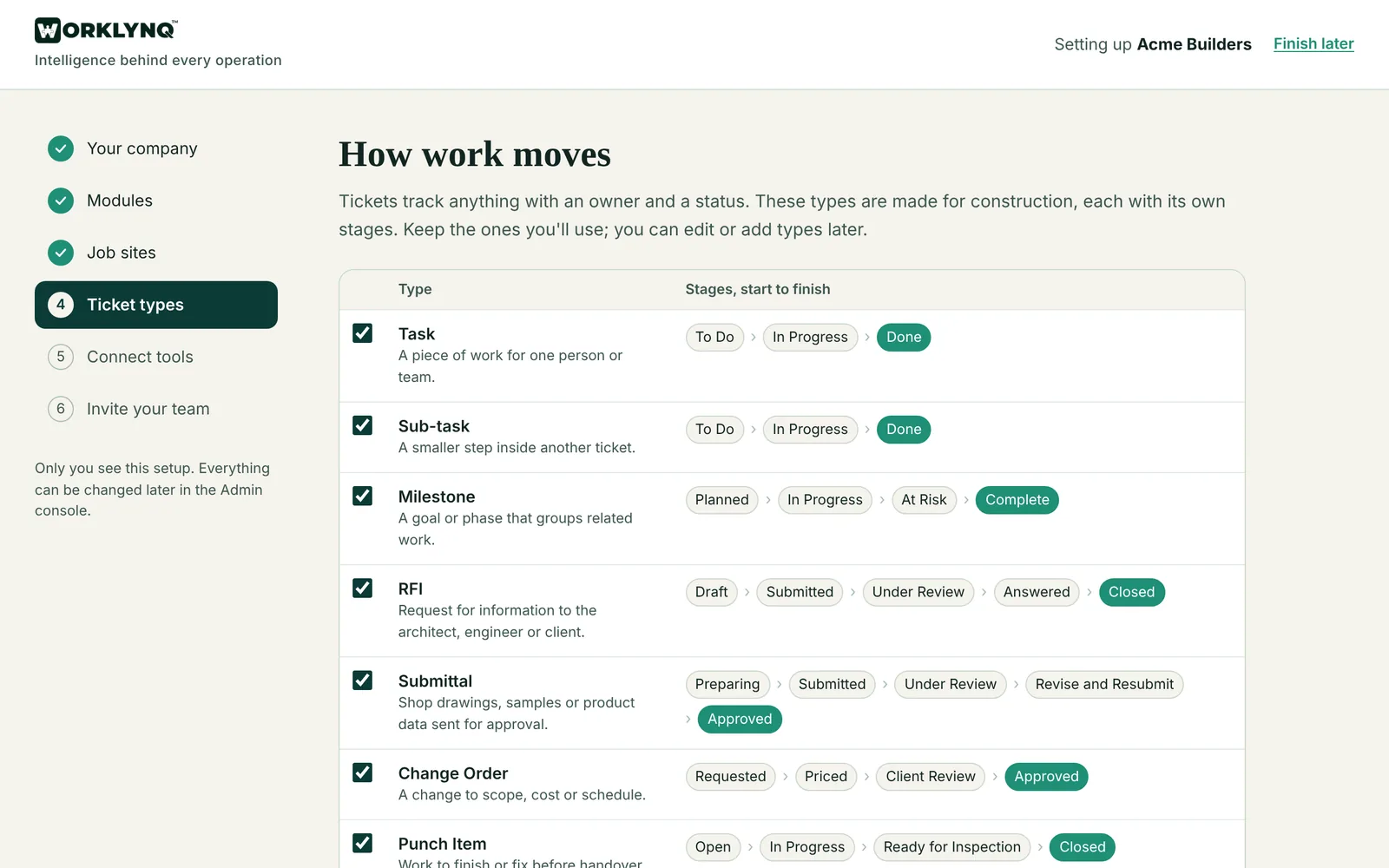
Map them to your work. By default every store, project, or product can use all of your ticket types. Narrow it down later in the Admin console if, say, only the kitchen needs Food Safety Issues.
The ticket types you choose are ordinary ticket types. Rename them, change their stages, or add automations later in Admin console → Work Configuration → Ticket types.
6Connect your tools
Setup suggests tools that fit the modules you picked — for example QuickBooks when Projects or Operations is on, or Square when Order Tracking is on — and says why. Connect opens Admin console → Connectors in a new tab, so you don’t lose your place. You can skip this step and connect tools anytime.
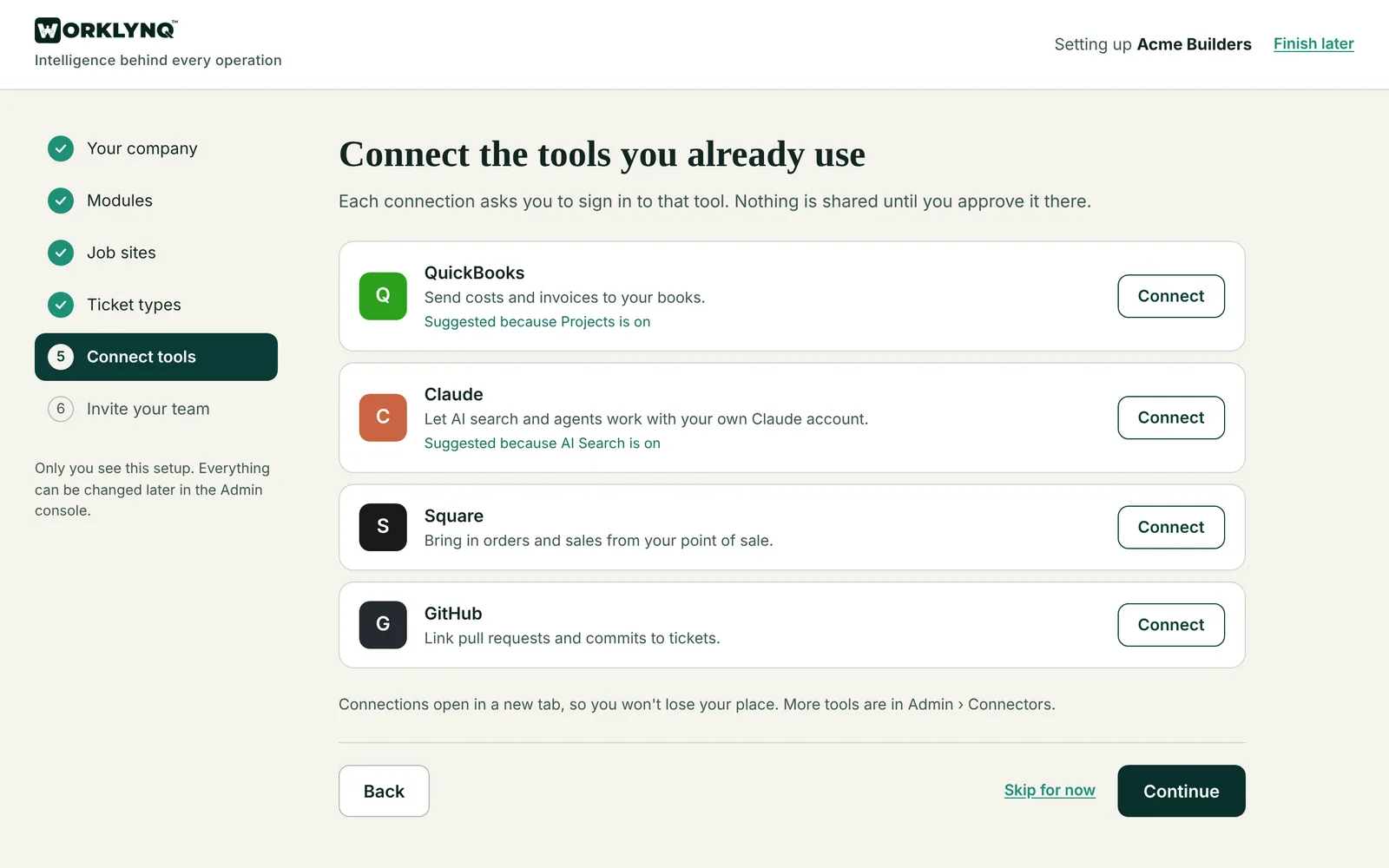
For software teams: GitHub, Claude, and Cursor
- GitHub first. Connect GitHub so Worklynq can link tickets to your code and open pull requests. Give it permission to read and write code and pull requests on the repositories you want Worklynq to work with.
- Claude. Create an API key in the Claude Console, then in Worklynq open Developer Connections → Claude, paste the key, choose a model, and map each product to its repository and base branch.
- Cursor. Paste your Cursor API key in Developer Connections → Cursor and map each product to its repository.
Once connected, you can hand any ticket to Claude or Cursor from the ticket itself, when you create it, or automatically when it reaches a stage you choose. You can turn the AI agent section on or off for each ticket type.
Everything else
Your own software — a loyalty or booking app — can be connected as a custom app. Square and QuickBooks are available now: bring your sales and your books into Worklynq’s dashboards, store by store. Worklynq also connects to the other tools you already use — email and calendars, chat, and social media. These connections roll out through the beta; Integrations shows what’s planned. Each connection is switched on by your System Admin and only shares what you allow.
Your own AI
Anyone on your team can connect the AI they already use — Claude, ChatGPT, Claude Code, or Cursor — to Worklynq, and ask it about their work or have it update tickets, docs, and dashboards as them. See Connect your AI.
7Invite your team
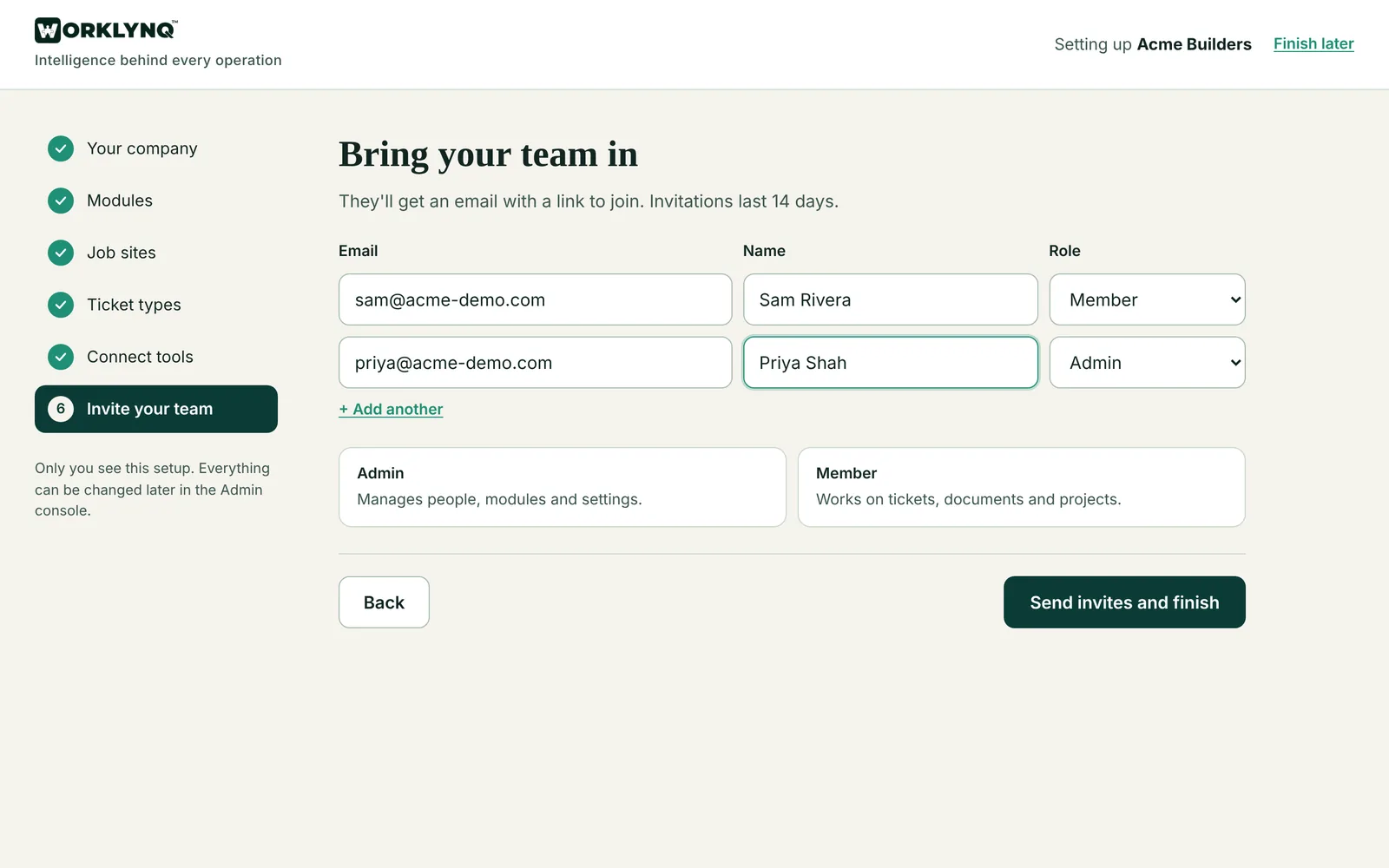
Add people by email and name, and choose Member (works on tickets, documents, and projects) or Admin (manages people, modules, and settings). Click Send invites and finish; each person gets an email with a link to join, which lasts 14 days. You can also finish without inviting anyone and invite people later from the Admin console.
Group people into teams — the kitchen, the field crew, the platform team — so work and dashboards can be shared with the right people. Roles and permissions decide what each person can see and change, and Worklynq’s AI only ever answers with what that person is allowed to see.
Finish setup, and you land on Home, ready with your modules, your stores, projects, or products, and your ticket types.
After setup
- Start on Home — your open work and what’s overdue, every morning. See Home.
- Create your first tickets — or set up a recurring checklist for opening and closing.
- Write down how you work in Knowledge Center, so new staff and the AI can find it.
- Build a dashboard for each store, team, or product.
- Open Assist on any page and ask a question about your business — or say “start my shift”.
- Put a TV up in each store with today’s orders and tasks — see TV screens.
- Change anything — modules, ticket types, connections, and people — in the Admin console. Only the System Admin can change modules.
Want the full picture of each module? Read Modules.
Last updated: October 26, 2026. Questions? info@cohesync.com