
Features
Training
Courses for new hires — lessons, quizzes and sign-offs by a manager who watched — and everyone’s certifications, like food handler cards, with warnings before they expire and a check when shifts are planned.
Prefer to watch? This short video shows assigning a course, a manager sign-off, and keeping cards in date. More are on Video tutorials.
Who it’s for
Training is on for new Operations and Software companies; others turn it on in Admin console → Work Configuration → Modules.
- Everyone sees My training: their courses, with progress, the next step and the due date, and their own certifications.
- Managers — System Admins, and the people who plan shifts — also see Team, Courses and Certifications.
Courses
A course is a list of steps, each one of three kinds:
- Lesson — something to read, marked done with I’ve read this.
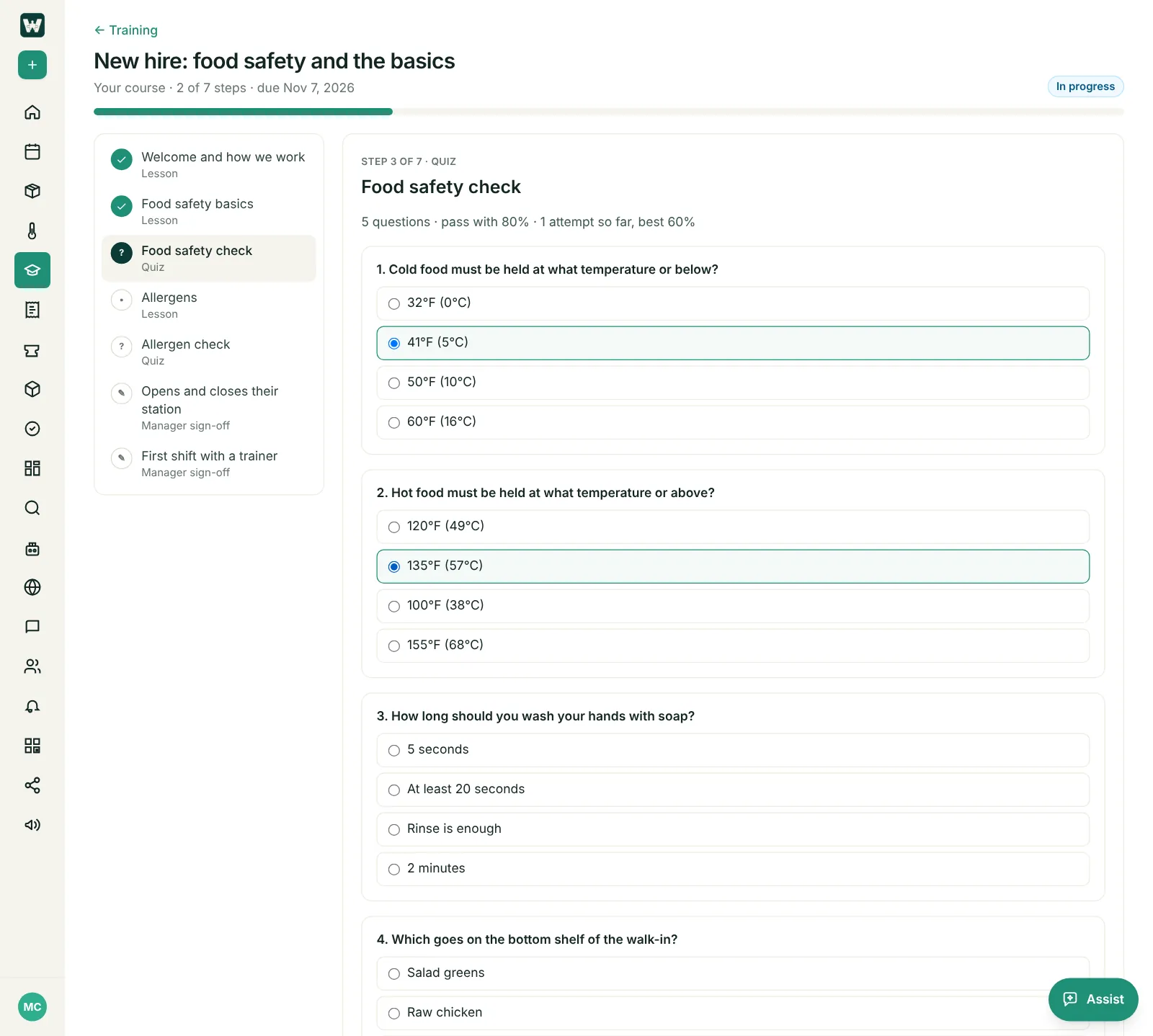
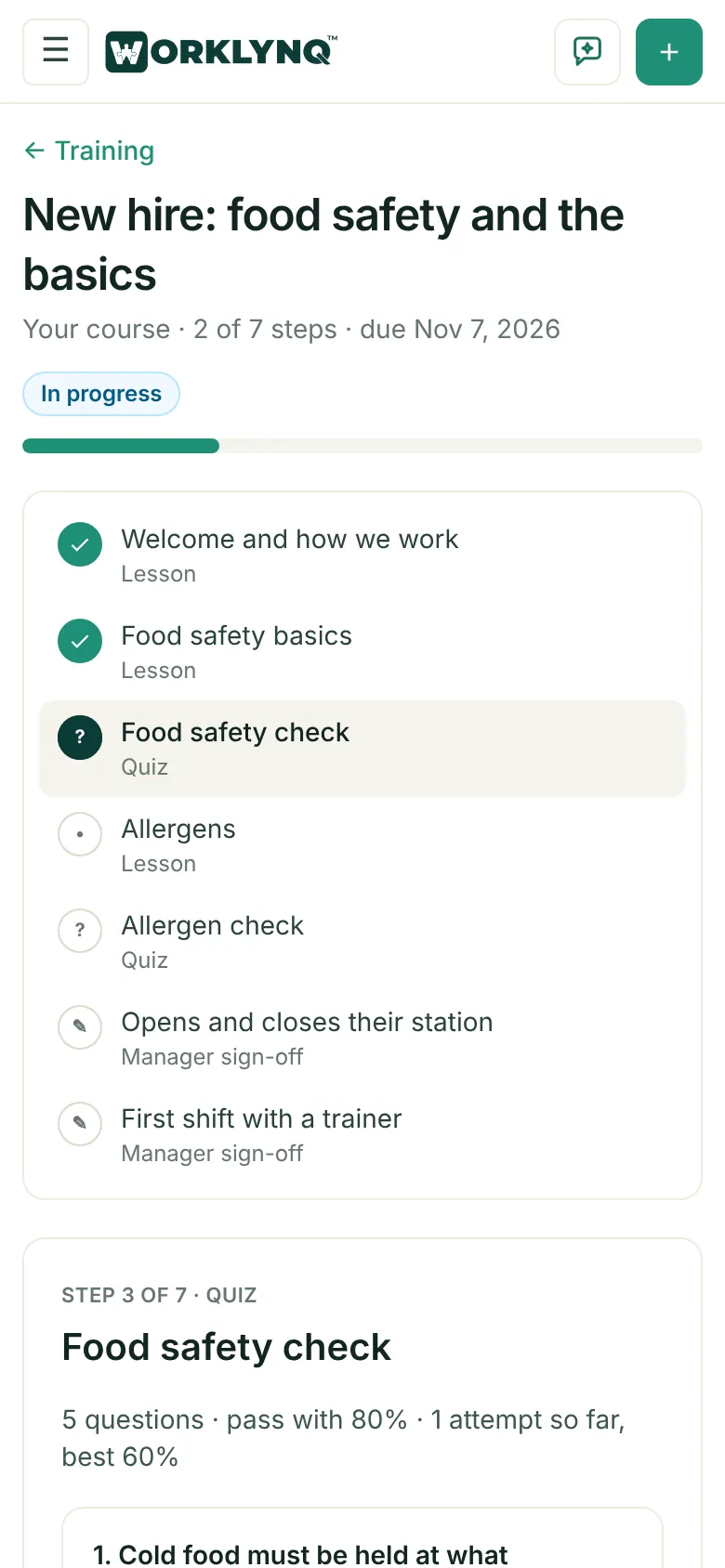
- Quiz — multiple-choice questions with a pass mark (80% to start). After each try the trainee sees what was right and why, and can try again; the best score is kept.
- Sign-off — a manager watches the trainee do it, then signs it off. Trainees can’t tick their own, and AI can’t sign anything off.
On Courses, Add the new hire course gives you a ready-made one: how we work, food safety basics with a quiz, allergens with a quiz, and two sign-offs — opening and closing a station, and a first shift with a trainer. Edit it, or write your own with + Course.
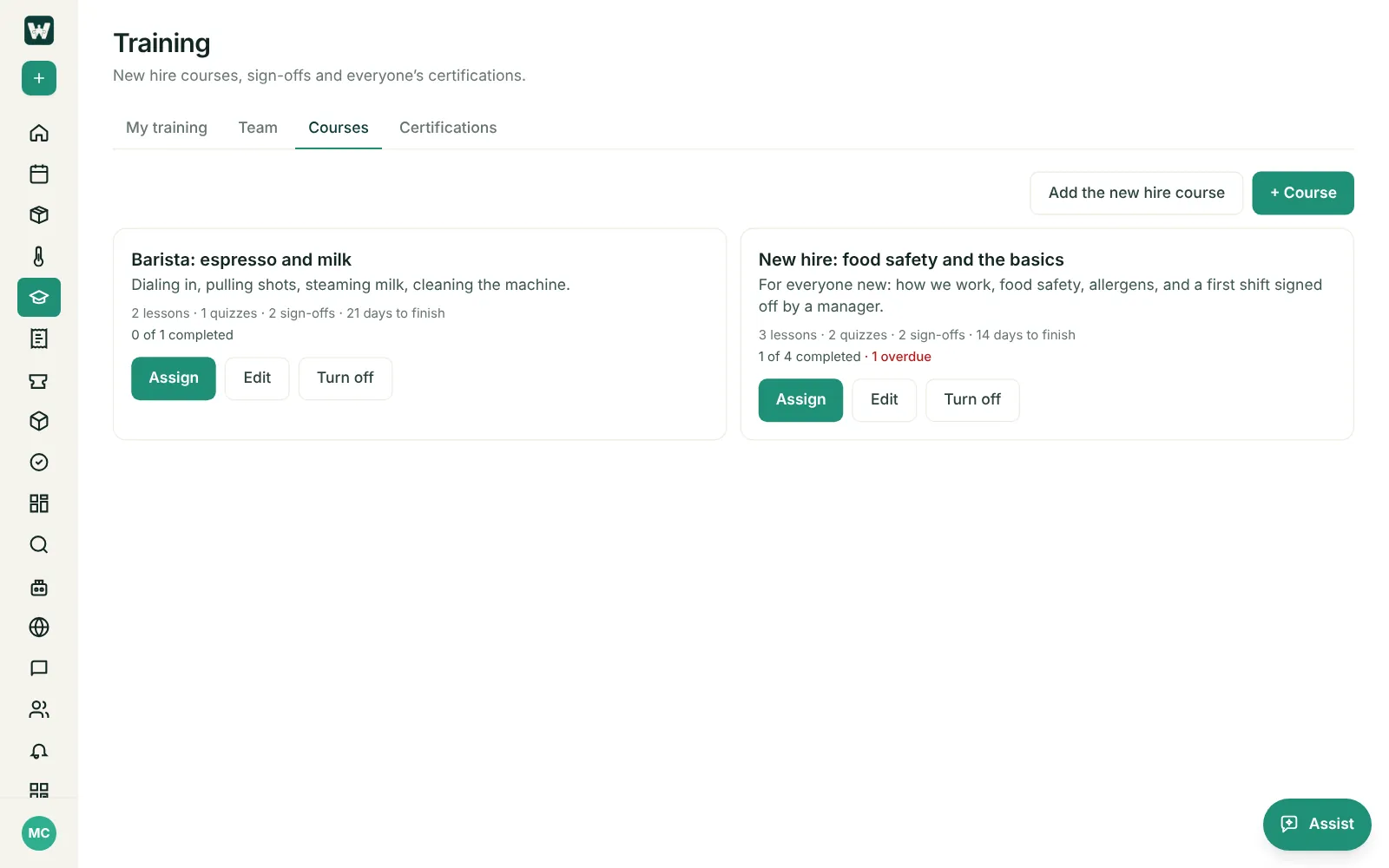
Assign a course
- Click Assign on a course (or Assign a course on Team).
- Pick the people and a due date. Each person is notified.
- Follow along: each assignment is not started, in progress, completed or overdue, and Team flags anyone waiting for a sign-off.
Take a course
Open a course from My training. The steps run down the side; the current one fills the page.
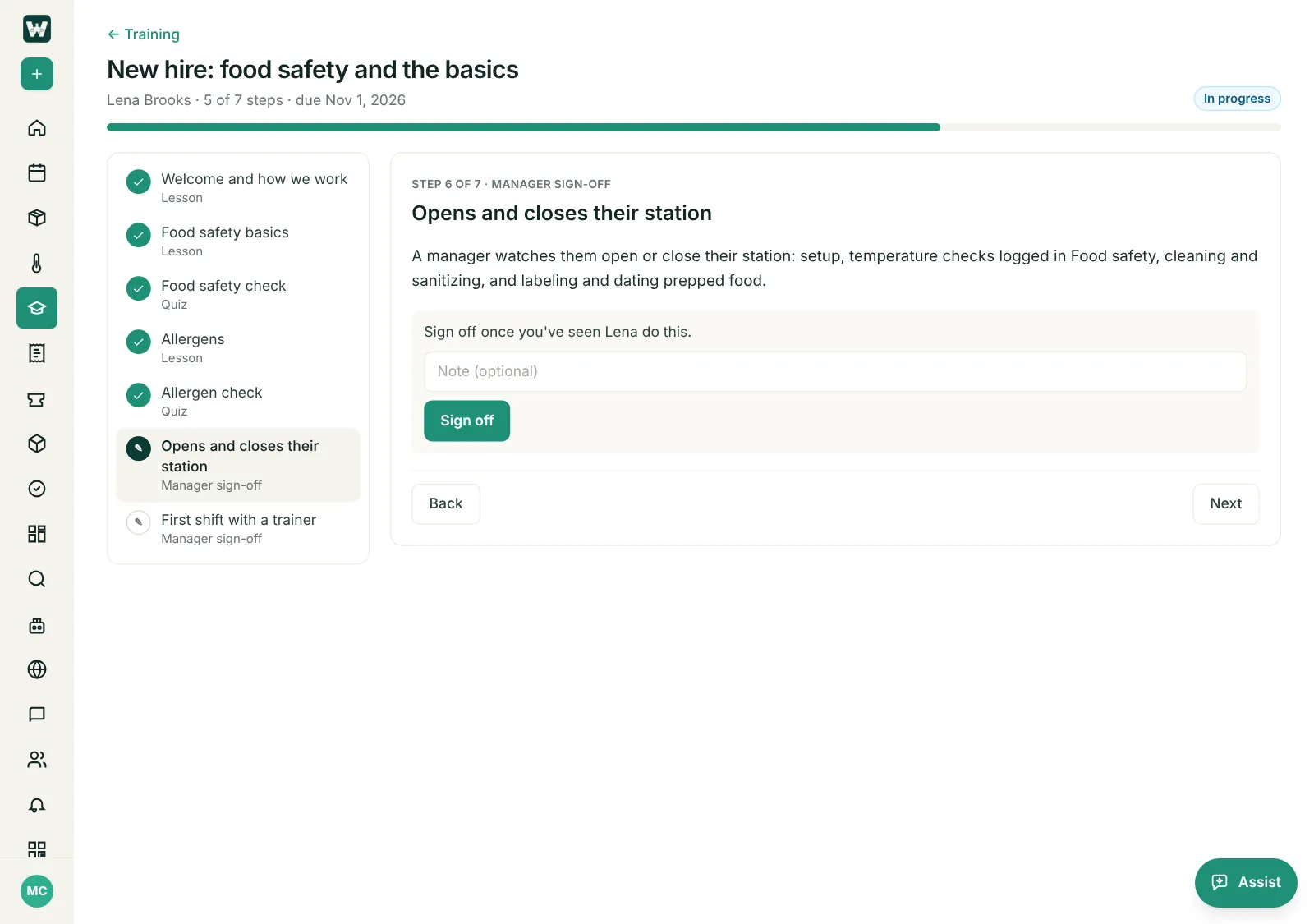
For a sign-off, the manager opens the same course from Team, watches, adds a note if they like, and clicks Sign off. The course is complete once every step is done.
Team
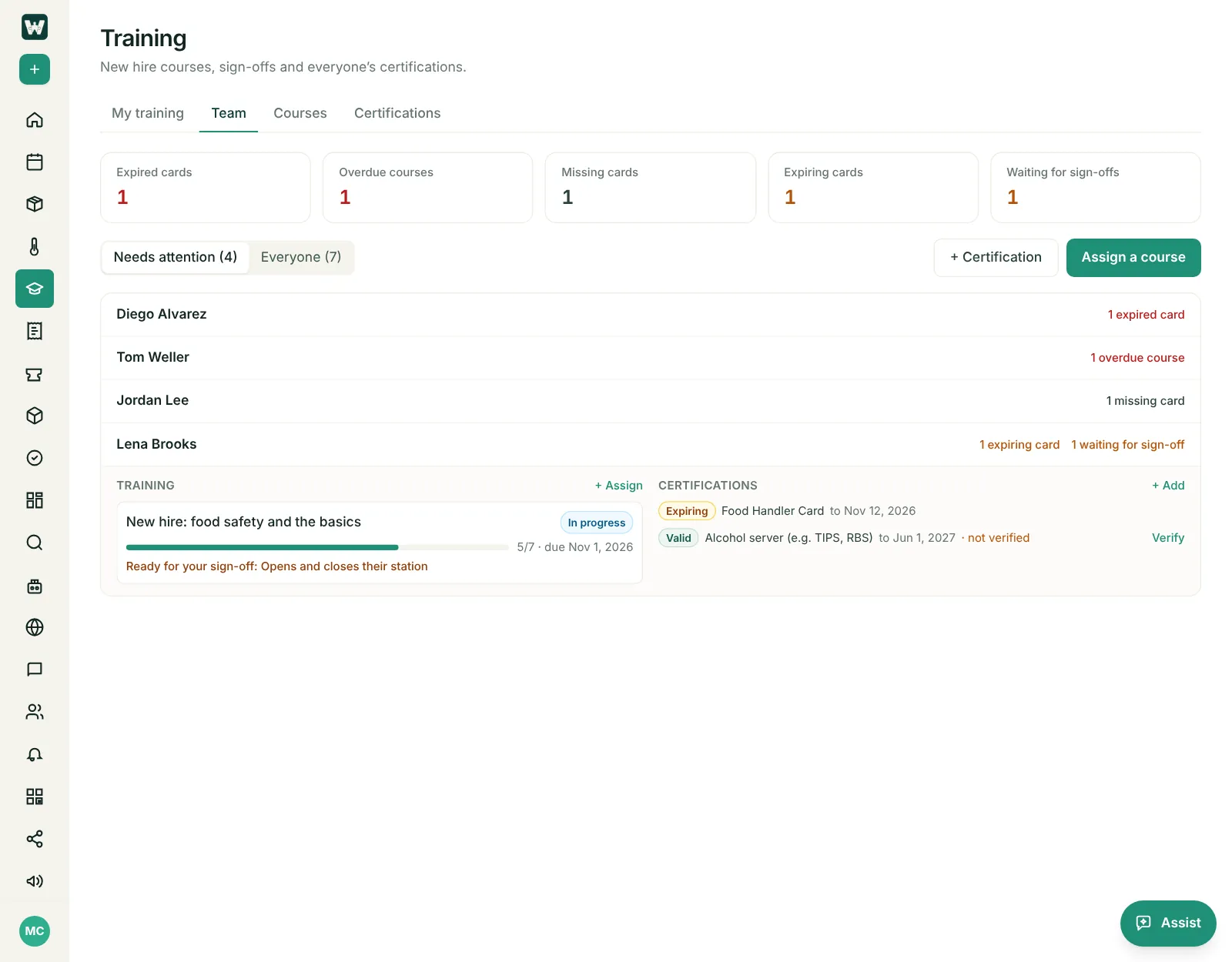
Team is where managers keep up. The counts at the top — expired cards, overdue courses, missing cards, expiring cards, waiting for sign-offs — and Needs attention list who to chase first. Open a person to see their courses and cards, sign off what they’re waiting for, or Verify a card.
Certifications
Certifications lists the cards your company tracks. Add the usual ones to start with Food Handler Card (everyone needs it, 36 months, blocks scheduling), Food Protection Manager (60 months), Alcohol server (36) and Allergen awareness (36) — then check them against your state and county rules, and change any of them.
- Each type has how many months it’s valid, how many days of warning, whether everyone needs it, and whether it blocks scheduling when expired.
- A card is valid, expiring or expired; a required card nobody has added is missing. A renewal replaces the old card.
- Anyone can add their own card (+ Add a card). It stays unverified until a manager checks it and clicks Verify.
Cards and the schedule
When a manager plans, changes or copies shifts, Worklynq checks each person’s cards for the shift’s day:
- A required card that will be expired refuses the shift, when its type blocks scheduling — the message says which card and when it expired.
- Missing or expiring cards don’t stop the shift; they show as a warning. New hires usually have a grace period to get their card.
Managers also see expired and expiring cards, and anyone behind on training, in the Daily brief — an expired card is flagged first when that person is working today.
Ask Assist
Ask Assist “what training do I have?” or, as a manager, “whose cards are expiring?”. Tell it “my food handler card expires March 3, 2027” and it saves the card once you say go ahead.
Last updated: November 22, 2026. Questions? info@cohesync.com