
Get started
Worklynq AI credits
Worklynq’s built-in AI — Assist, AI Search, AI agents, and AI in dashboards — runs on Worklynq AI credits. Everyone on your team gets a monthly allowance that comes with your plan, your company can buy extra credits when it needs more, and you can see exactly where they go.
Credits included with your plan
Every person on your team gets their own monthly allowance, set by your plan:
| Plan | Credits per person, per month | About this many Assist questions |
|---|---|---|
| Basic | 1,000 | 110 |
| Advance | 3,000 | 330 |
| Premium | 7,000 | 775 |
- Each person’s allowance is their own — one busy person can’t use up someone else’s.
- A typical Assist question uses about 9 credits. Bigger requests, like building a dashboard, use more; requests that fail without an answer use none.
- Allowances start again at the beginning of each calendar month. Unused credits don’t carry over.
- Worklynq can set a different allowance for one person, or a limit for the whole company, if you ask at info@cohesync.com.
What uses credits
| Feature | Uses credits when… |
|---|---|
| Assist | you send it a message |
| AI Search | you ask a question |
| AI agents | a Worklynq agent runs — by hand, on a schedule, or from a ticket stage |
| Dashboards | AI builds or explains a dashboard, or writes a scheduled report’s summary |
No credits for your own AI. When your company uses its own Claude or OpenAI API key for a feature, that use costs no Worklynq credits — your provider bills you directly. The same goes for Claude and Cursor coding agents, and for your own Claude or ChatGPT connected to Worklynq.
Extra credits
When someone uses up their own allowance, they carry on with your company’s extra credits — a shared pool for the month that everyone draws from once their own credits are gone.
| Pack | Price |
|---|---|
| 1,000 credits | $10 |
| 5,000 credits | $45 (save 10%) |
| 20,000 credits | $160 (save 20%) |
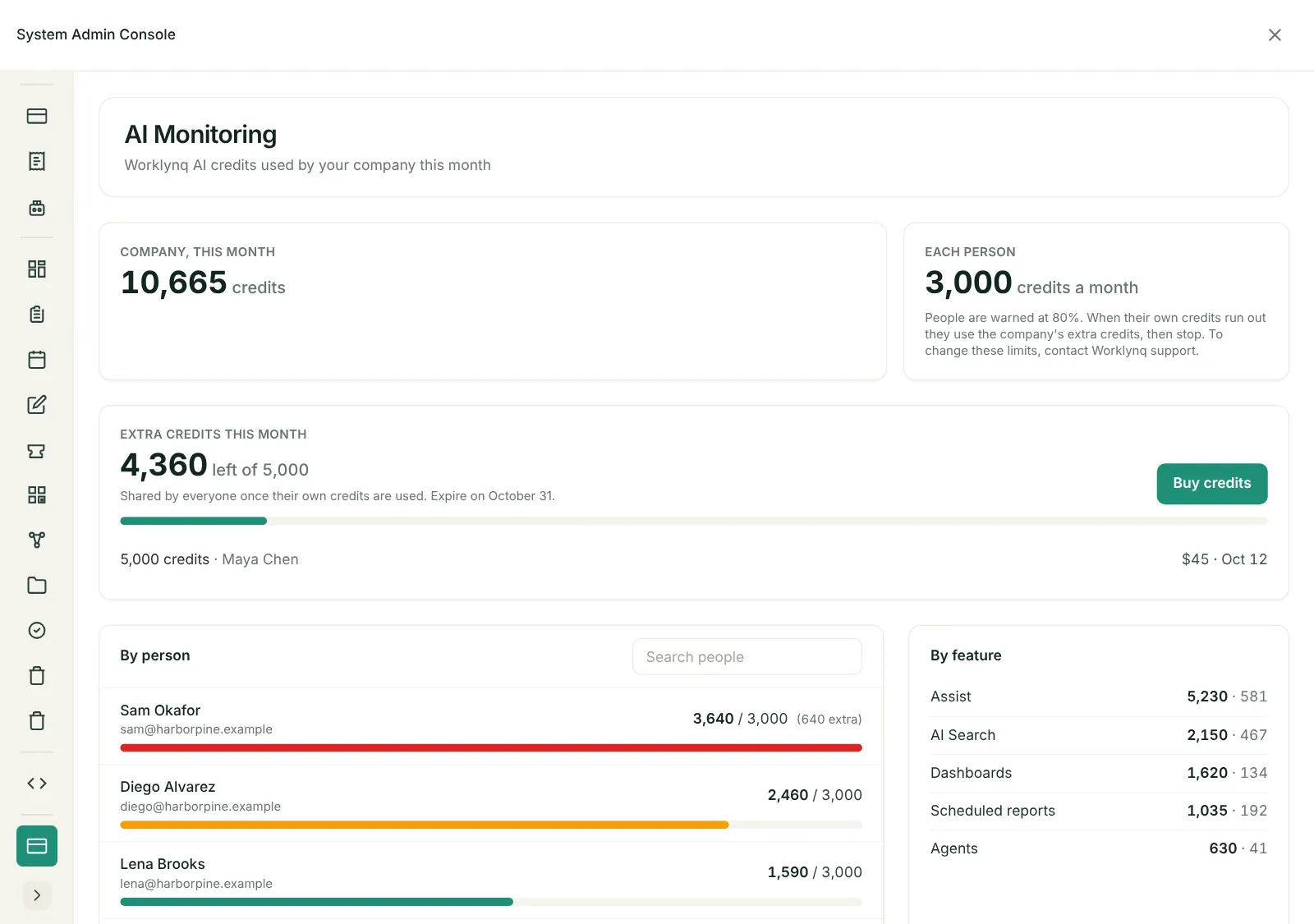
- Your System Admin opens Admin console → Billing → Credit packs and clicks Buy on a pack — or clicks Buy credits in Admin console → AI Monitoring.
- Payment is a one-time card payment on Stripe’s secure checkout page.
- Back in Worklynq, the credits appear in the pool within a minute. Every pack bought, with its Stripe receipt, is listed on the Credit packs page.
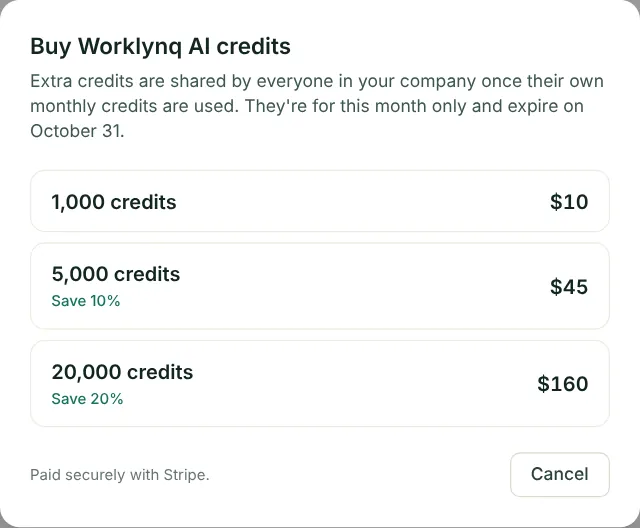
Extra credits are for the month you buy them in and expire at the end of that month, like allowances. Prices are in US dollars and exclude tax.
Before you run out
- At 80% of your own allowance, Assist shows how much you’ve used under the message box — for example, You’ve used 82% of your Worklynq AI credits this month.
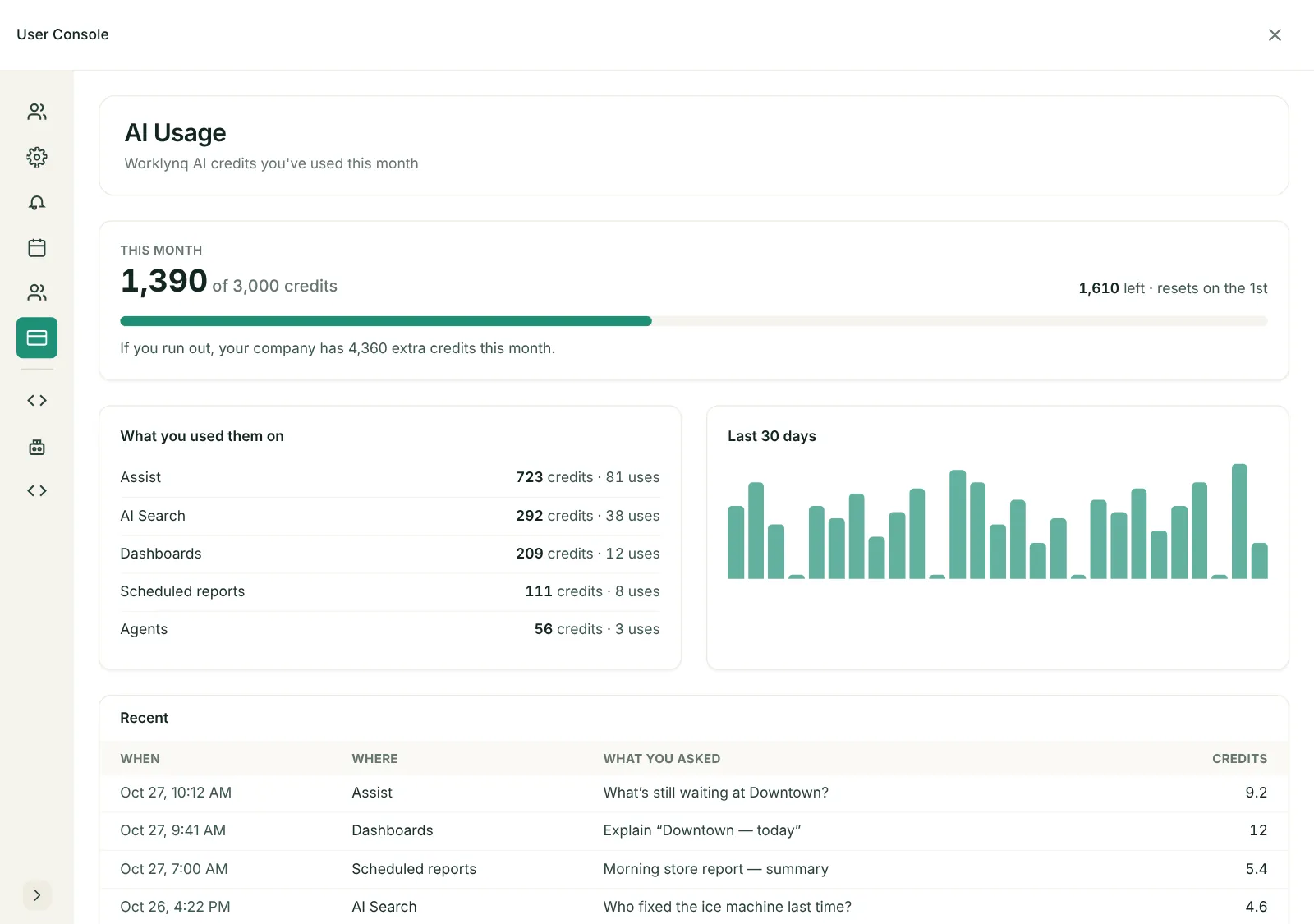
- At 100%, if your company has extra credits, you carry on with those and Assist says so — You’ve used your monthly Worklynq AI credits. You’re now using your company’s extra credits (4,360 left).
- When everything is used, Assist, AI Search, agents, and AI in dashboards stop and say You’ve used this month’s Worklynq AI credits. Ask your administrator to buy more credits. (or, if it’s a company limit, that your company has reached its credits) Everything else in Worklynq keeps working — only the AI features pause until more credits are added or the month ends.
See your own usage
Open your profile menu and choose AI Usage. You’ll see this month’s credits against your allowance, credits by feature, credits per day, your recent AI activity, and how many extra credits your company has left.
See your company’s usage
System Admins open Admin console → AI Monitoring to see the company’s credits this month, each person’s allowance, the extra credits left and when they expire, who bought which pack, how much each person drew from the extra credits, and credits by feature. Allowances can’t be changed there — contact Worklynq for that.
Turning AI off
AI can be turned off for a whole company or for one person. Ask Worklynq at info@cohesync.com. When it’s off, AI features say so and the rest of Worklynq works as usual.
Last updated: October 28, 2026. Questions? info@cohesync.com