
Features
Projects
Everything with a start and a finish — a client engagement, a fit-out, a website, a catering job — is a project. Anyone in your company can start one, set its goals, milestones and deliverables, and follow it on a dashboard made for it.
Who can use Projects
Everyone. Anyone who can see tickets can open Projects in the sidebar, start a project, and update its plan. A services company often runs many unrelated projects at once, so you don’t need an admin to set each one up.
A project is public unless its owners make it private.
Projects is on for every kind of company. If you don’t see it in your sidebar, a System Admin turns it on in Admin console → Work Configuration → Modules.
Find your projects
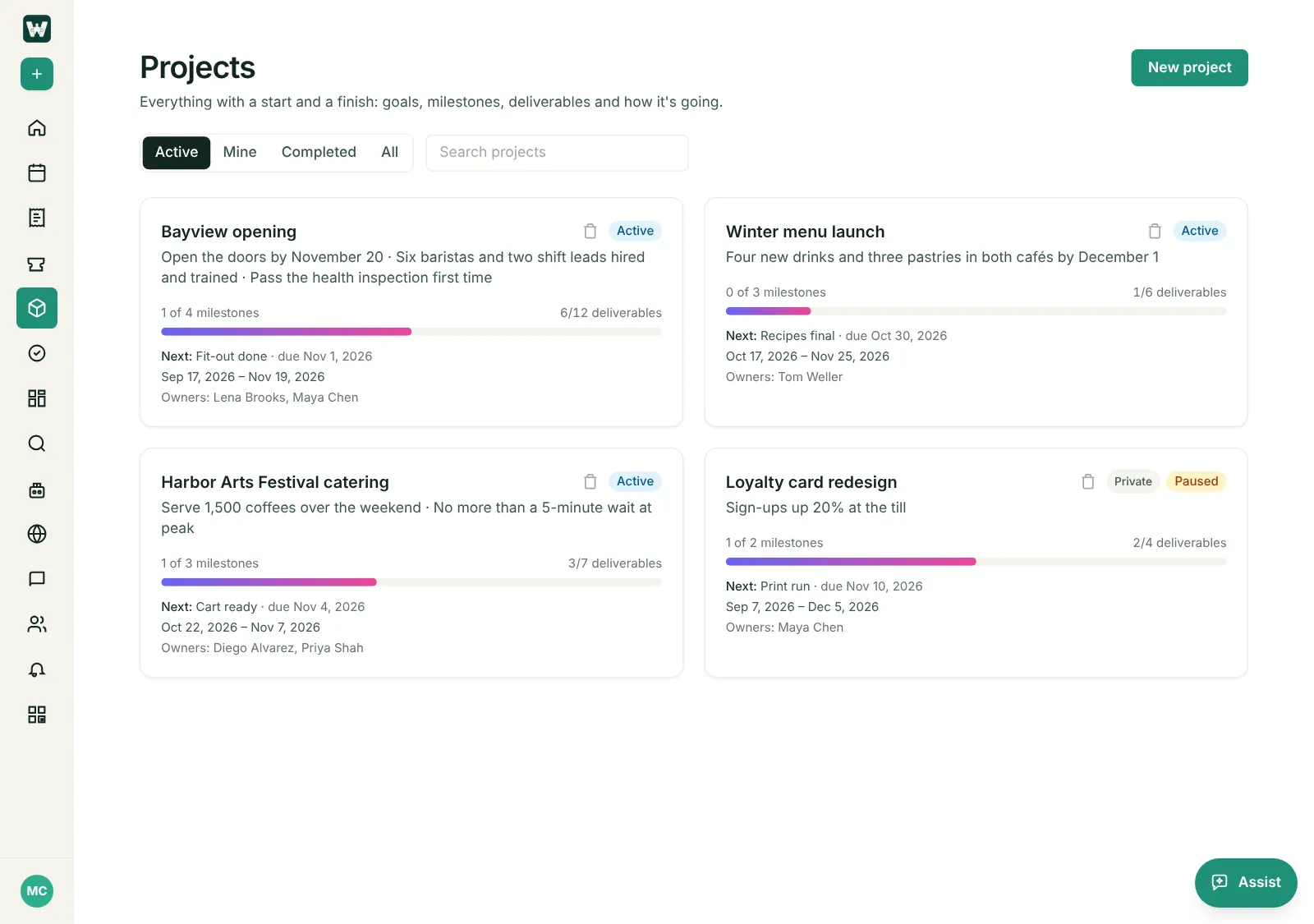
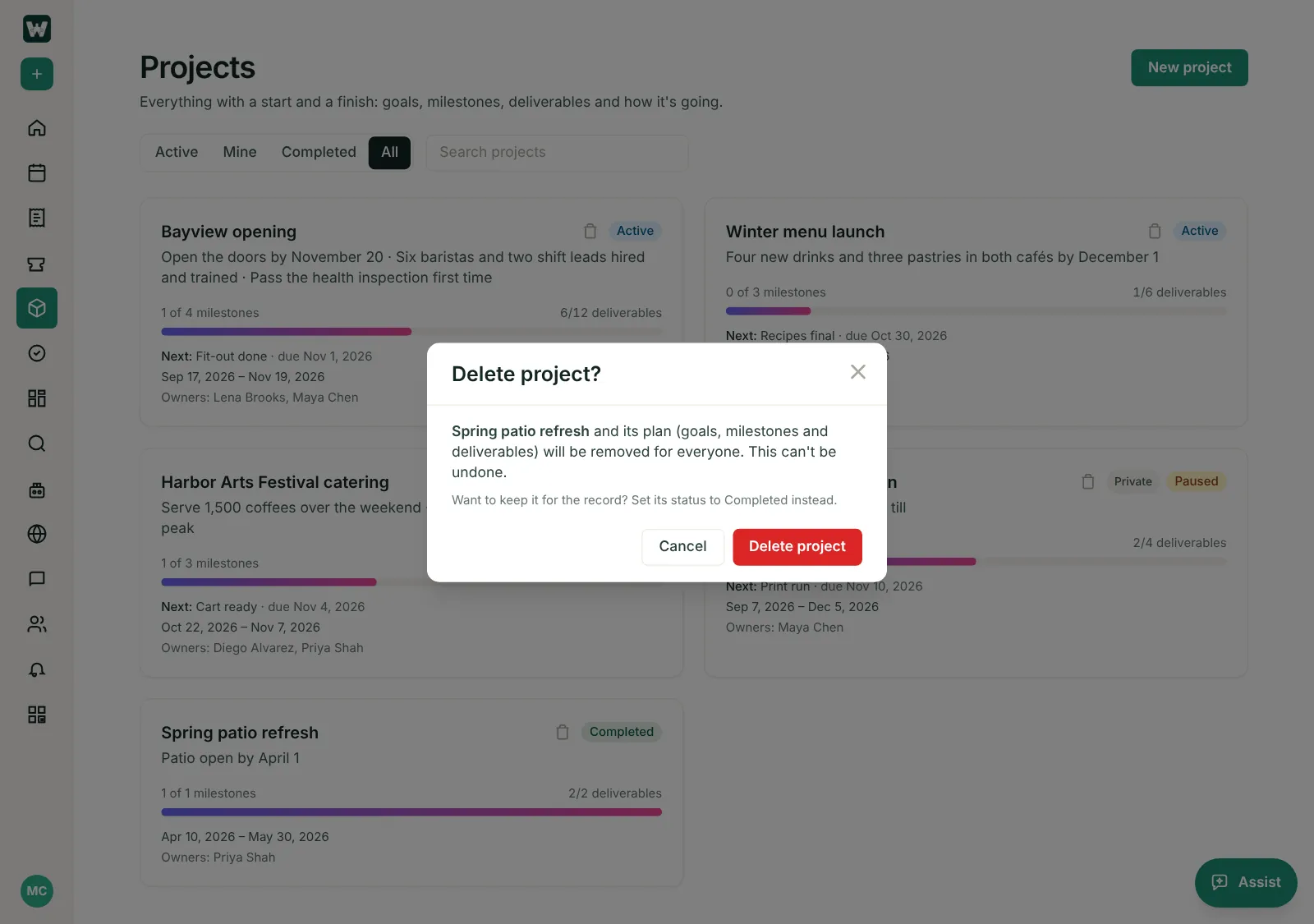
Projects opens on a card for each project, showing:
- its goals, and how many milestones and deliverables are done;
- the next milestone and when it’s due;
- its start and end dates (in red once it’s past its end date) and its owners;
- a Private badge if only its owners can see it.
Switch between Active, Mine (projects you own), Completed and All, or search by name or goal.
Start a project
- Open Projects and click New project.
- Give it a name and, if you like, a line about what it is (the client, the scope).
- Write its goals, one per line.
- Set the start and end dates.
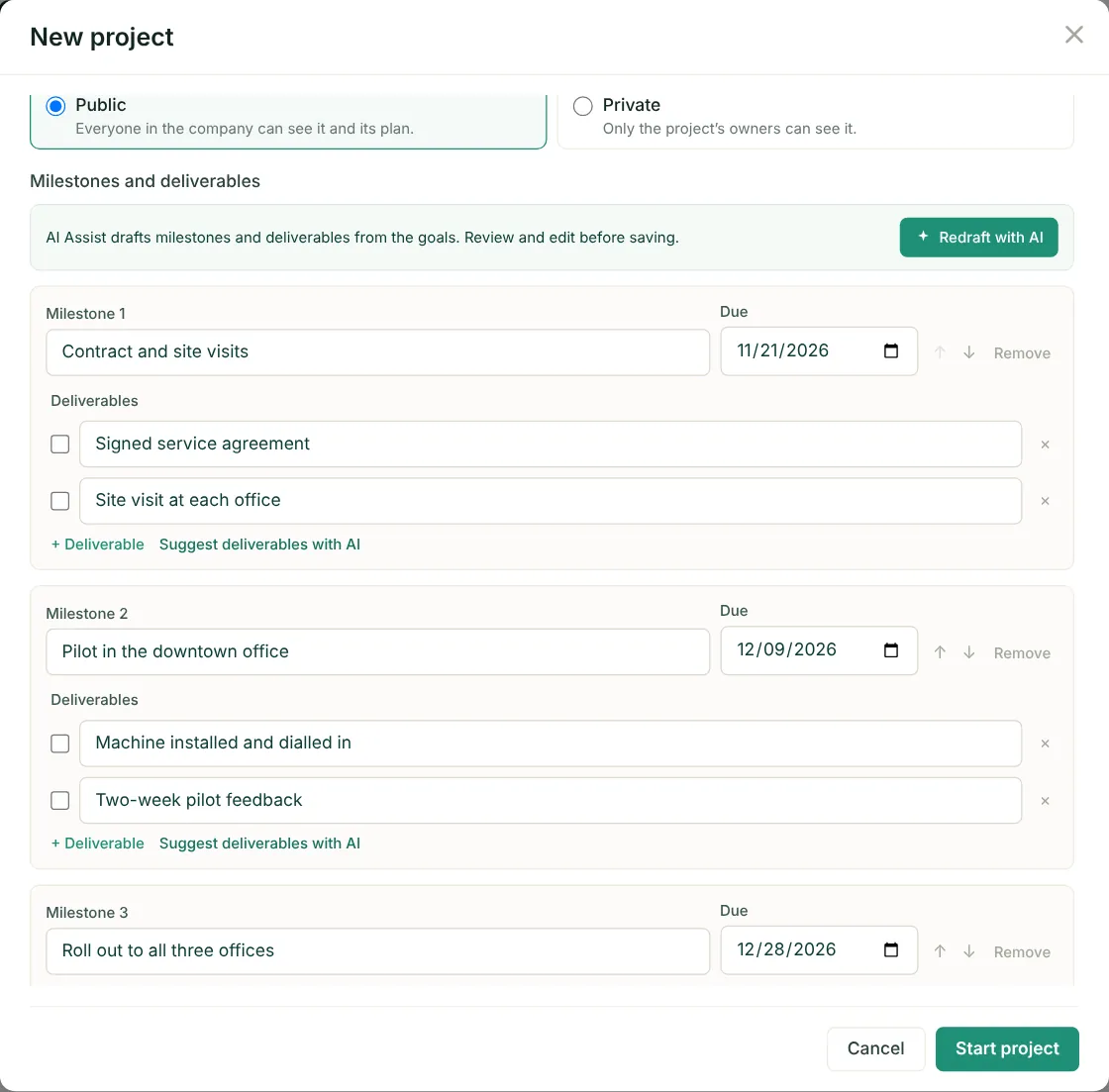
- Choose Who can see it: Public (everyone in the company) or Private (only the project’s owners).
- Add milestones, each with a due date, and the deliverables that finish each one — or let AI Assist draft them from your goals. Use the arrows to reorder milestones.
- Click Start project. You become an owner, and the project opens on its dashboard.
You can leave the plan empty and fill it in later — only the name is needed.
Draft the plan with AI
New project and Edit plan both have AI Assist:
- Draft with AI writes milestones and deliverables from the goals and description. Due dates are spread evenly up to the project’s end date. If you’ve already typed milestones, it asks before replacing them.
- Suggest deliverables with AI, under each milestone, adds deliverables for that milestone and keeps the ones already there, ticked or not.
Review and change anything before you save.
Public or private
- Public (the default): everyone in the company can see the project and its plan.
- Private: only the project’s owners see it. Other people don’t find it in Projects, in the work-area pickers, or by its link.
Only an owner can change it, under Who can see it in Edit plan.
Making a project private hides the project and its plan. Its tickets still show in All Tickets and the Team Board for people who could already see them.
The project dashboard
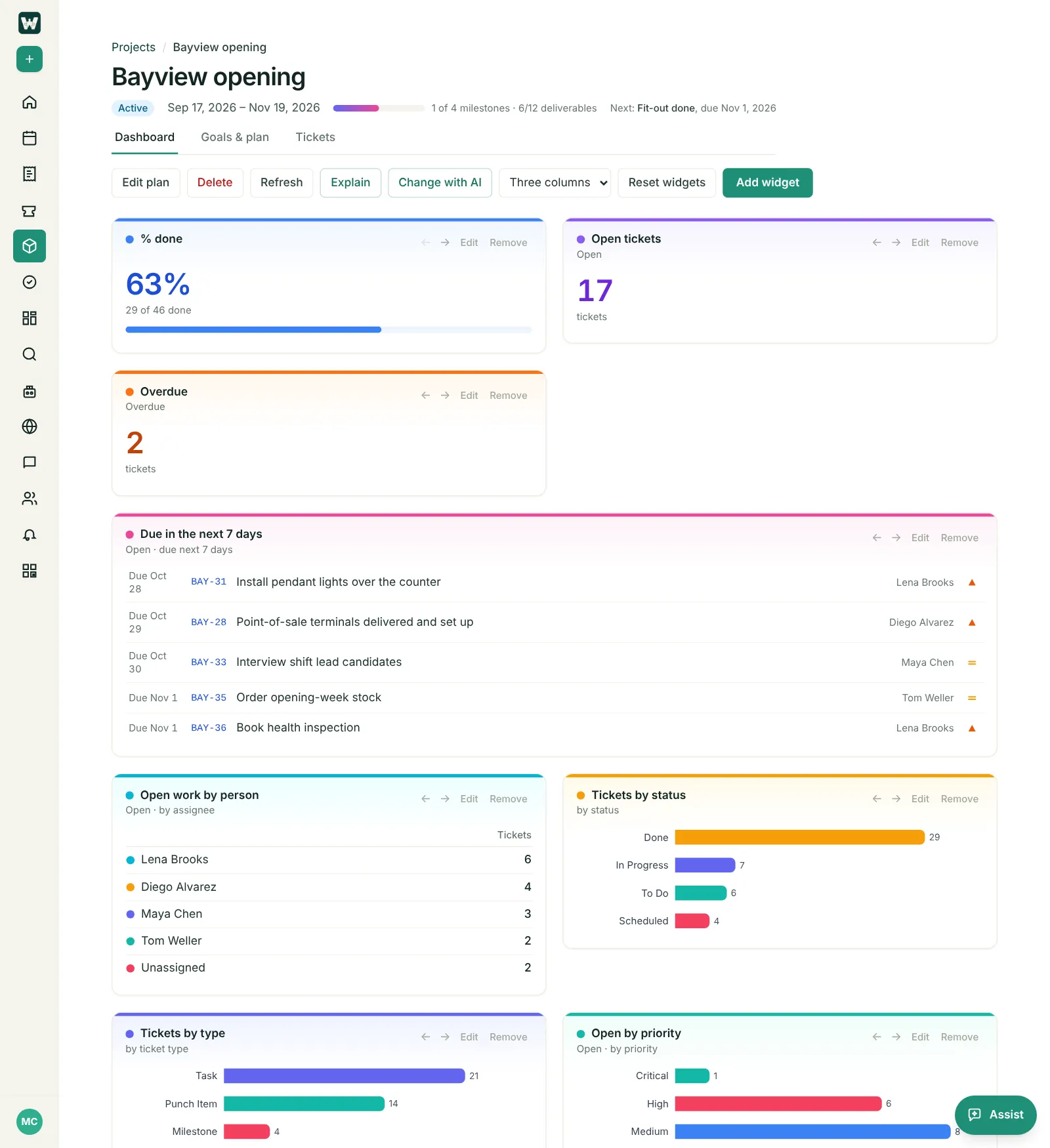
Each project has its own dashboard. The first time anyone opens it, it comes with these widgets:
- % done, Open tickets and Overdue;
- Due in the next 7 days and Overdue tickets, as lists;
- Open work by person, Tickets by status, Tickets by type and Open by priority;
- Completed per week.
Every widget counts only this project’s tickets. Make it yours:
- Edit, Remove or move a widget, or Add widget.
- Change with AI — describe what you want to add or drop (“add blocked tickets and remove the priority chart”) and preview the result before you save. The AI knows the project’s goals and milestones.
- Explain — AI tells you in a few points what the numbers say.
- Reset widgets puts the defaults back.
The dashboard is shared with everyone in the company and anyone can change it. It belongs to the project, so it isn’t listed under Dashboards and can’t be deleted.
Goals and plan
Open the Goals & plan tab to see the project’s goals next to a timeline of its milestones. Each milestone shows when it’s due, how many deliverables are done, and whether it’s done, next, or late.
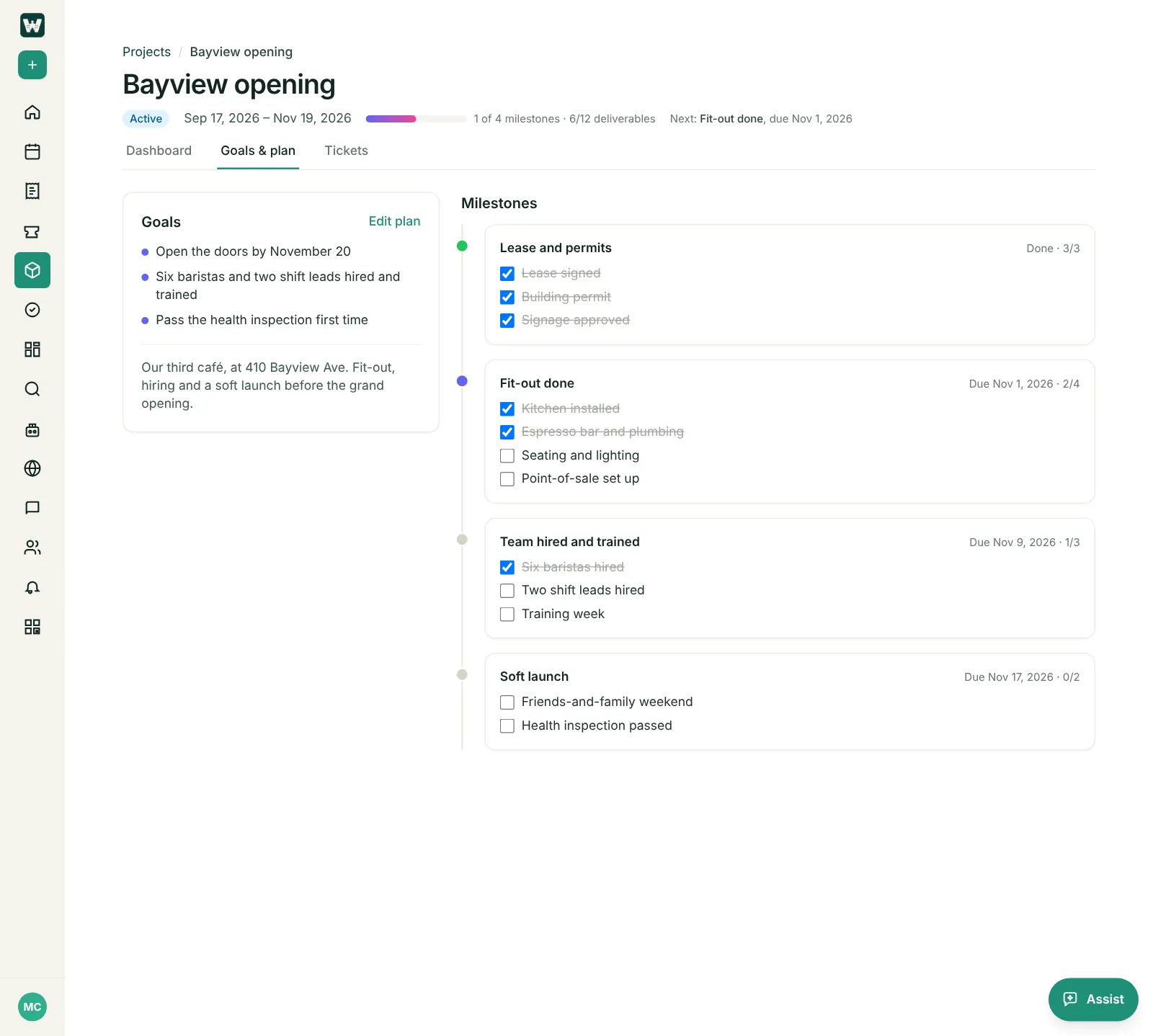
- Tick a deliverable to mark it done. A milestone is done when all its deliverables are.
- Edit plan to change the name, status (Active, Paused or Completed), description, goals, dates, milestones and deliverables.
Tickets for a project
Every project has its own tickets, numbered with its own ticket tag. Open the Tickets tab to see them, or pick the project when you create a ticket. They’re what the dashboard counts.
Delete a project
A project’s owners, or a System Admin, can delete it from the trash icon on its card, Delete on its dashboard, or Delete project in Edit plan. The project and its plan are removed for everyone, and this can’t be undone.
- A project that still has tickets can’t be deleted. Move or delete its tickets first.
- Want to keep it for the record? Set its status to Completed instead.
What System Admins manage
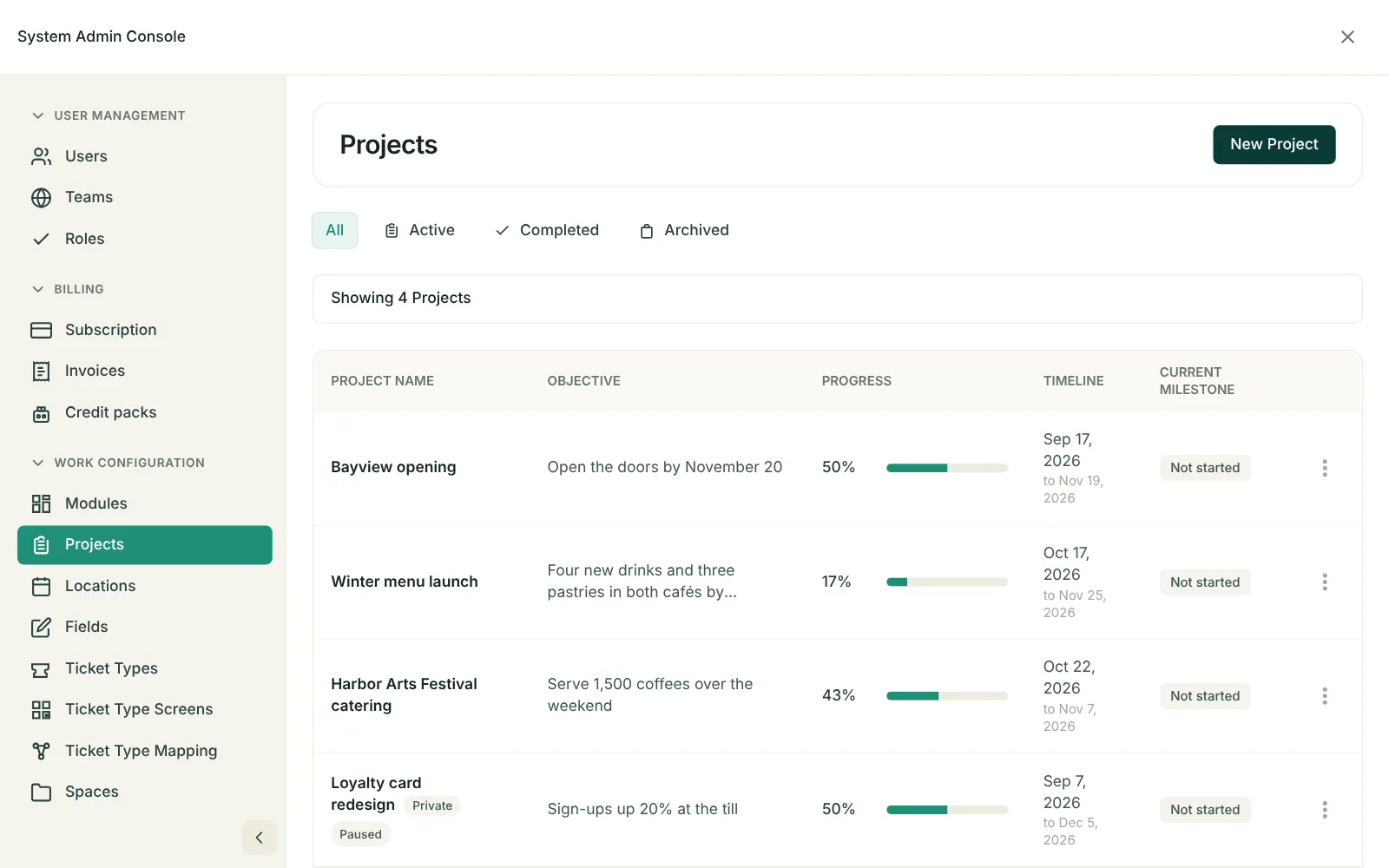
In Admin console → Work Configuration → Projects, System Admins archive and restore projects, set ticket tags, and choose which ticket types each project uses. People without admin access can’t change those from the Projects module.
- The list opens on All, next to Active, Completed and Archived. Each row shows the project’s status, and its actions follow that status — an archived project can be Restored.
- It lists public projects and your own private ones, marked Private. Other people’s private projects stay hidden.
Last updated: November 6, 2026. Questions? info@cohesync.com