
Features
Chat
Talk to your team in channels and direct messages — and when a conversation turns into work, turn it into a ticket or a doc in two clicks, with the conversation attached.
Prefer to watch? This short video introduces Chat. More are on Video tutorials.
Turn on Chat
Chat is off until a System Admin turns it on in Admin console → Work Configuration → Modules. Then everyone in the company finds Chat in the sidebar. The first visit creates a #general channel.
Channels
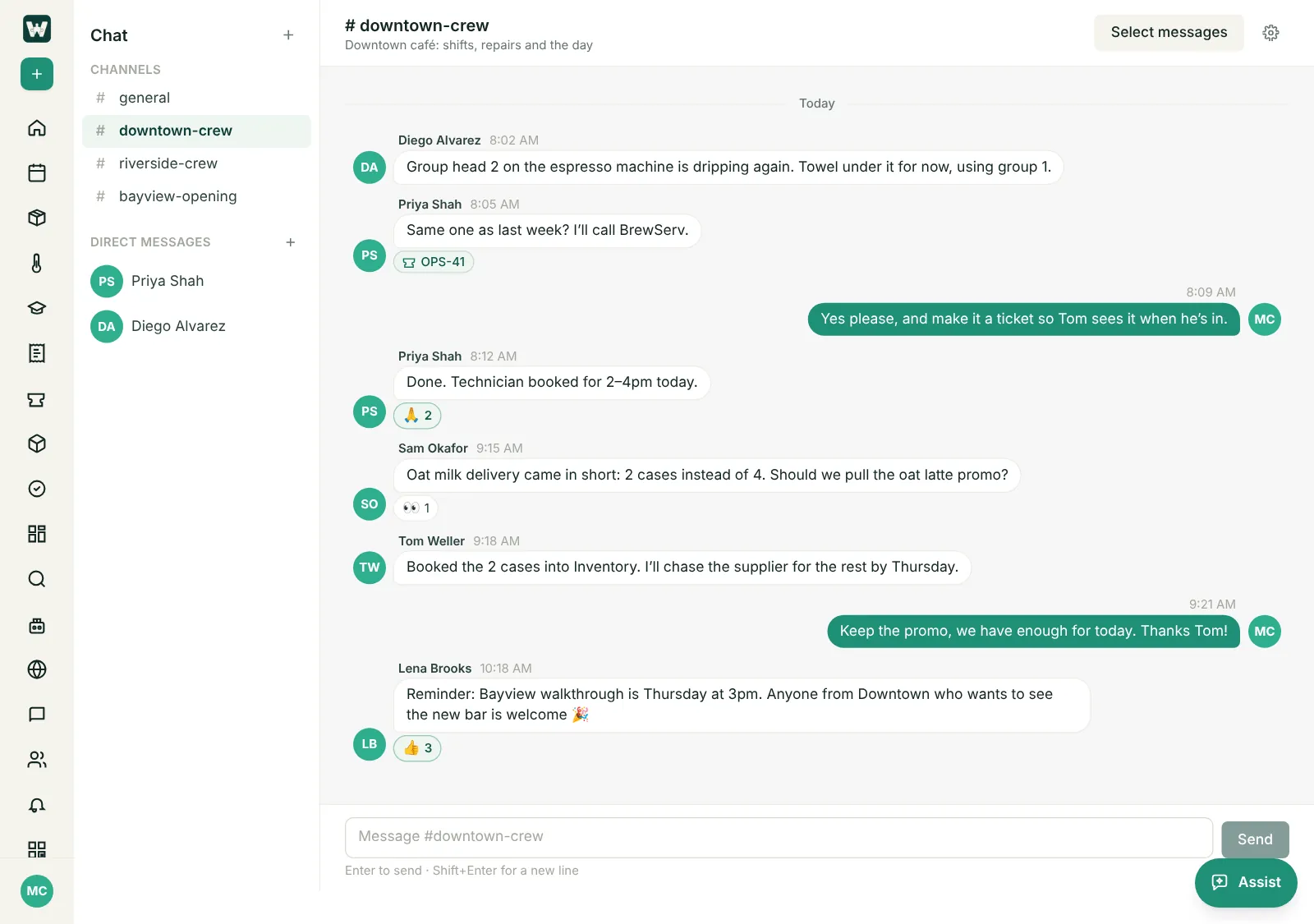
Channels are for the whole company — one per store, crew, project or topic. Click + next to Channels to start one.
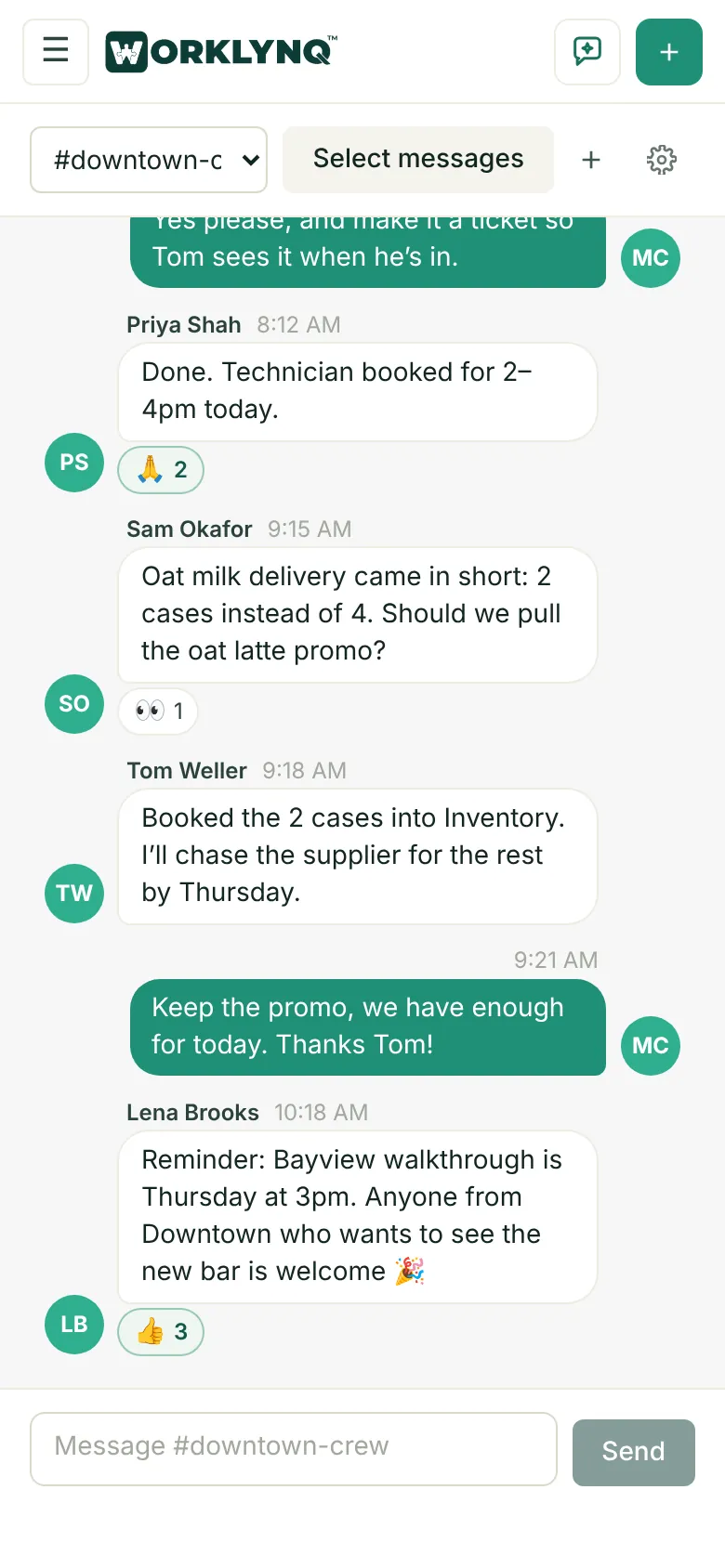
- Your messages are on the right; everyone else’s are on the left, with their name, profile photo and the time.
- Press Enter to send, Shift + Enter for a new line.
- The person who started a channel, or a System Admin, can rename it or archive it from its settings.
- New messages show up on their own while the channel is open.
Direct messages
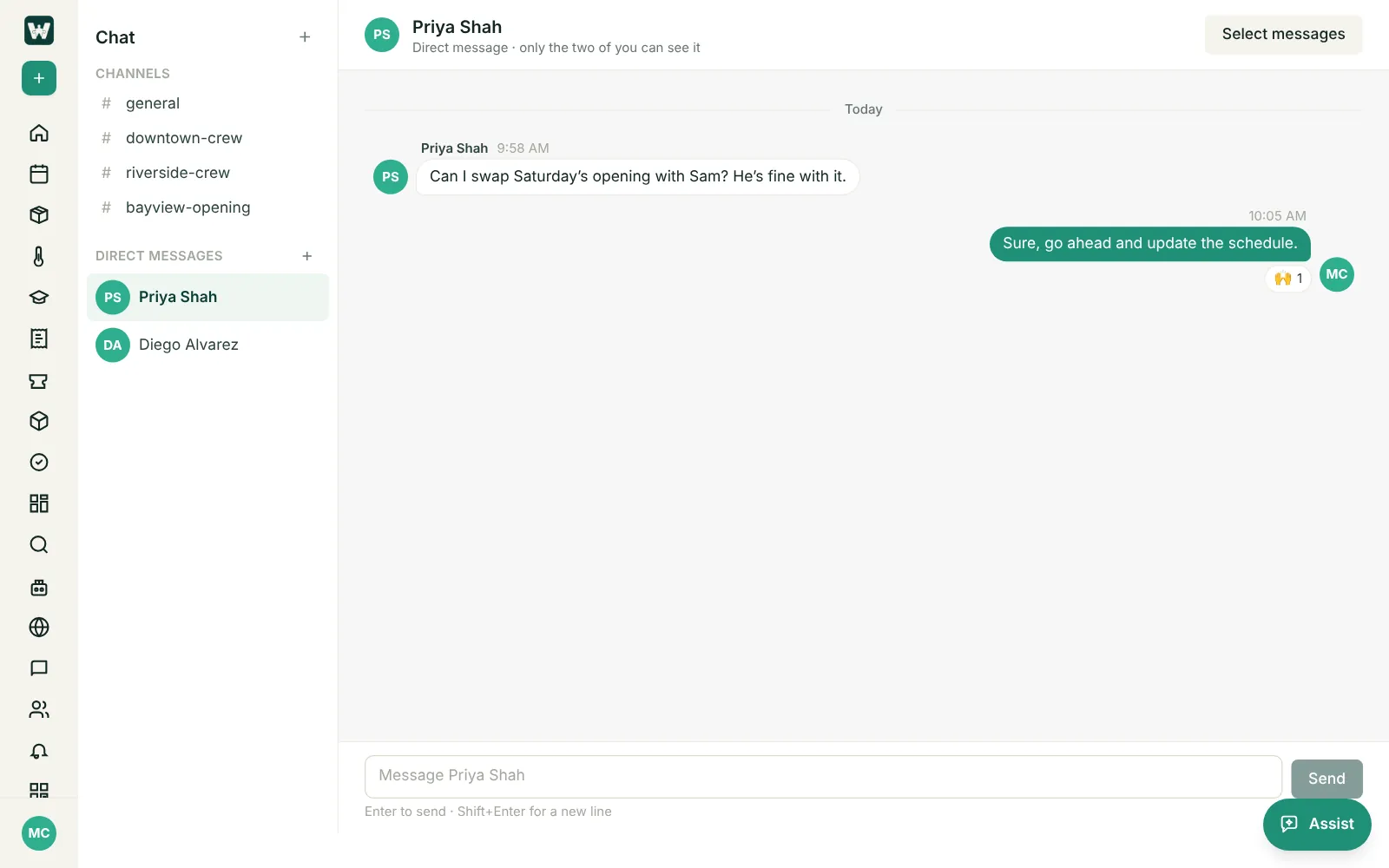
Click + next to Direct messages and pick a person to talk one to one. A direct message is private: only the two of you can see it — not even a System Admin can open it.
React, edit and delete
- Hover a message (or tap it on a phone) to react with an emoji, select it, or edit or delete your own. The buttons sit right beside the message.
- Pick from six quick reactions, or + for every emoji. Click a reaction again to take it back; hover it to see who reacted.
- Edit a message in place: Enter saves, Esc cancels.
- Deleting a message removes its text. A System Admin can delete any message in a channel.
Turn messages into a ticket or a doc
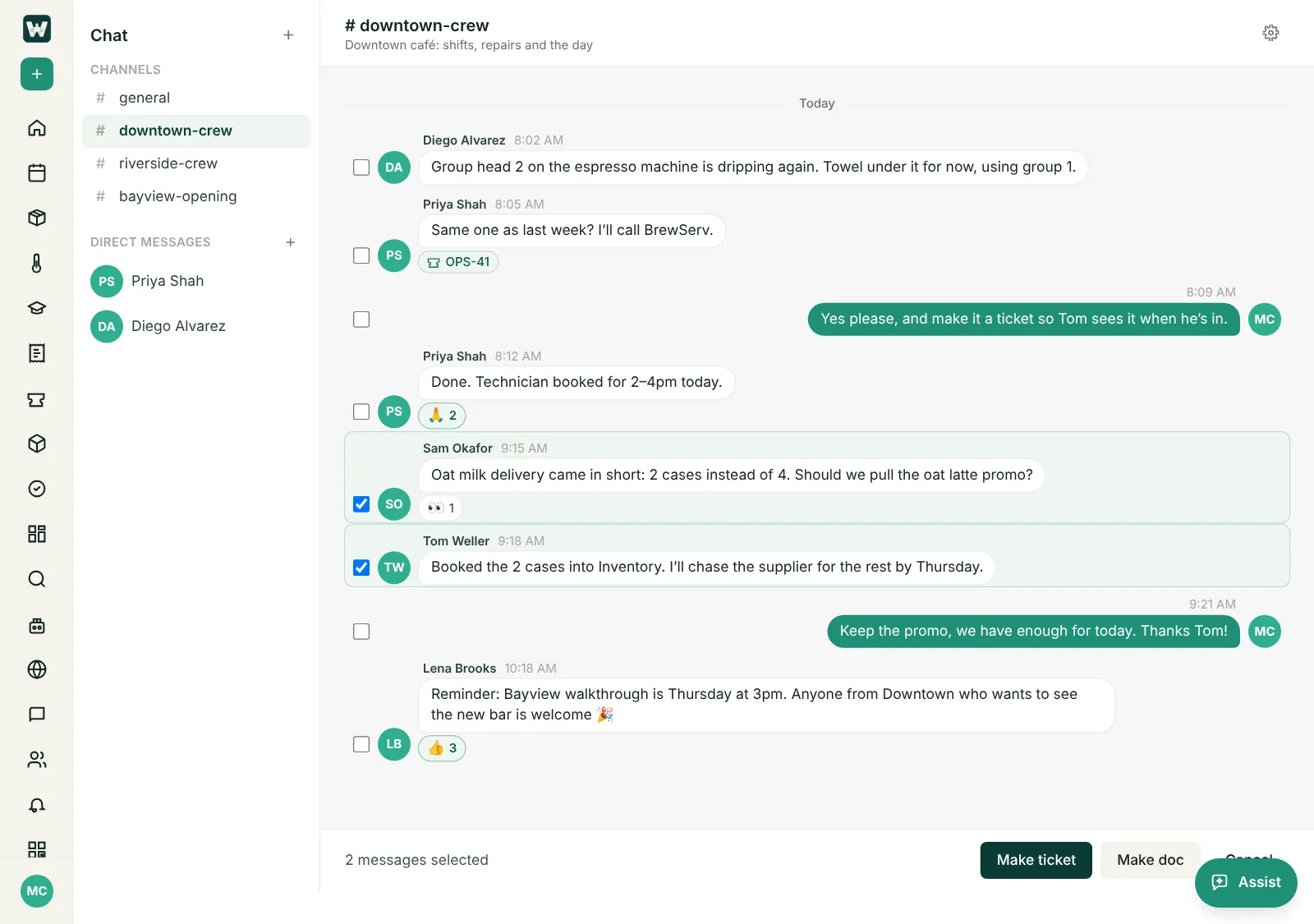
- Click Select messages (or hover a message and pick Select), then tick the messages you want.
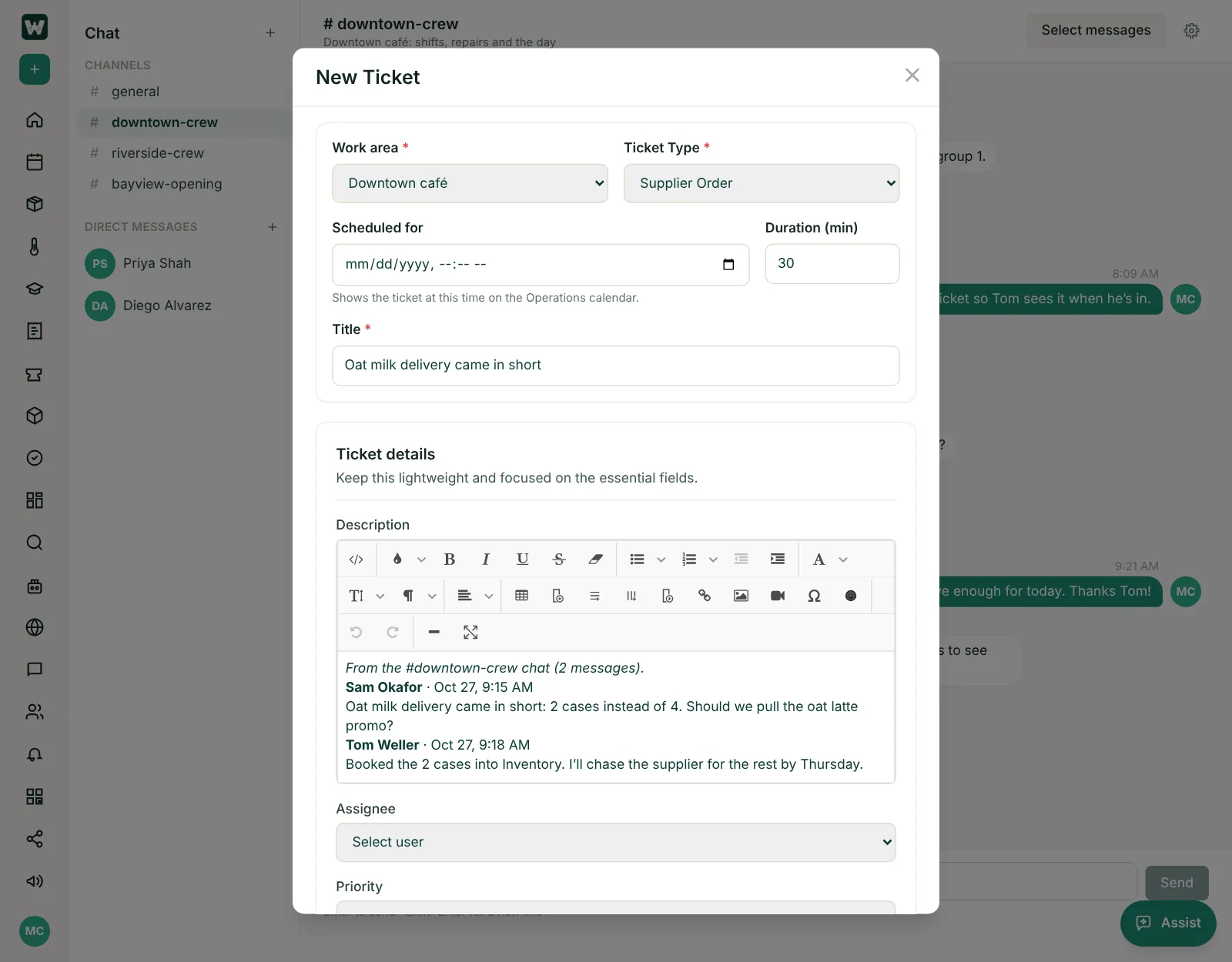
- Click Make ticket. New Ticket opens with a title suggested from the first message and the conversation — names and times — as the description. Pick the work area and type, and create it.
- The messages get a link to the ticket, like OPS-41, so everyone in the channel can open it.
Make doc works the same way: it creates a draft page in your My Space with the conversation, ready to tidy up into a procedure or meeting notes.
Make ticket appears when Tickets is on and you can create tickets; Make doc when Spaces is on.
On your phone
Chat works on a phone too: pick the channel or direct message from the menu at the top, and tap a message to show its buttons.
Ask Assist about a conversation
With a channel open, ask Assist “summarize this channel” or “what did we decide about the oat milk?” — it answers from the conversation on your screen and stays on the channel you’re reading.
Last updated: November 11, 2026. Questions? info@cohesync.com